Obsidian MCP servers compared
Run a filesystem MCP server beside your Obsidian vault, or grant a hosted connector access to a synced collection. Compare permissions and offline access.Choose a local server if you want a desktop client to work directly with one folder. Choose the hosted mdbase connector if you want to reach the collection from a web client such as Claude or ChatGPT.
| Local filesystem server | Hosted mdbase connector | |
|---|---|---|
| What you connect | A folder path on the computer running the client | One synced collection per approval |
| What the client can do | The reference server offers file reads and writes inside its allowed directories | Read records and query their properties. You can decline optional write permissions |
| What must be online | The computer with the vault and desktop client | With Cloud copy, the connector can read while your computer is off. With Private, a computer serving the collection must be online |
1. Make a test vault
Start with a folder containing just this file. Open the folder as a vault in Obsidian. Keep the copy small enough to check exactly which files you’re offering to the client. How Obsidian stores notes
---
title: East bank survey
status: awaiting-count
---

Return at low tide to count the nesting pairs.
2. Connect your preferred server
Local folder in Claude Desktop
You need Claude Desktop, Node.js with npx, and the absolute path to the test vault. In Claude Desktop’s application menu, open Settings → Developer → Edit Config. Add the following entry to the configuration. Keep any servers you already use under mcpServers. Replace the example path with your vault’s location. On Windows, escape each backslash in the JSON string.
{
  "mcpServers": {
    "vault": {
      "command": "npx",
      "args": ["-y", "@modelcontextprotocol/server-filesystem", "/absolute/path/to/Field research"]
    }
  }
}
Save and fully restart Claude Desktop. It starts the server as a local process and talks to it over standard input and output. The filesystem server offers editing tools too. Review the tool name and file path before approving a request. Official local MCP setup
Hosted collection in a web client
Use one sync service for a given folder. If you already sync this vault, decide which service will own that job before you turn on mdbase sync. The mdbase plugin for Obsidian can sync the vault in place of the desktop app.
You need an mdbase account and the Connect desktop app. Add the folder under Collections → Add existing, then Turn on sync in its actions menu. Choose Cloud copy for access while this computer is off, or Private for an encrypted copy. Follow the setup for Claude or ChatGPT using https://mcp.mdbase.dev/mcp.
On the mdbase approval screen, select the test collection. Keep read access and clear the optional permissions.
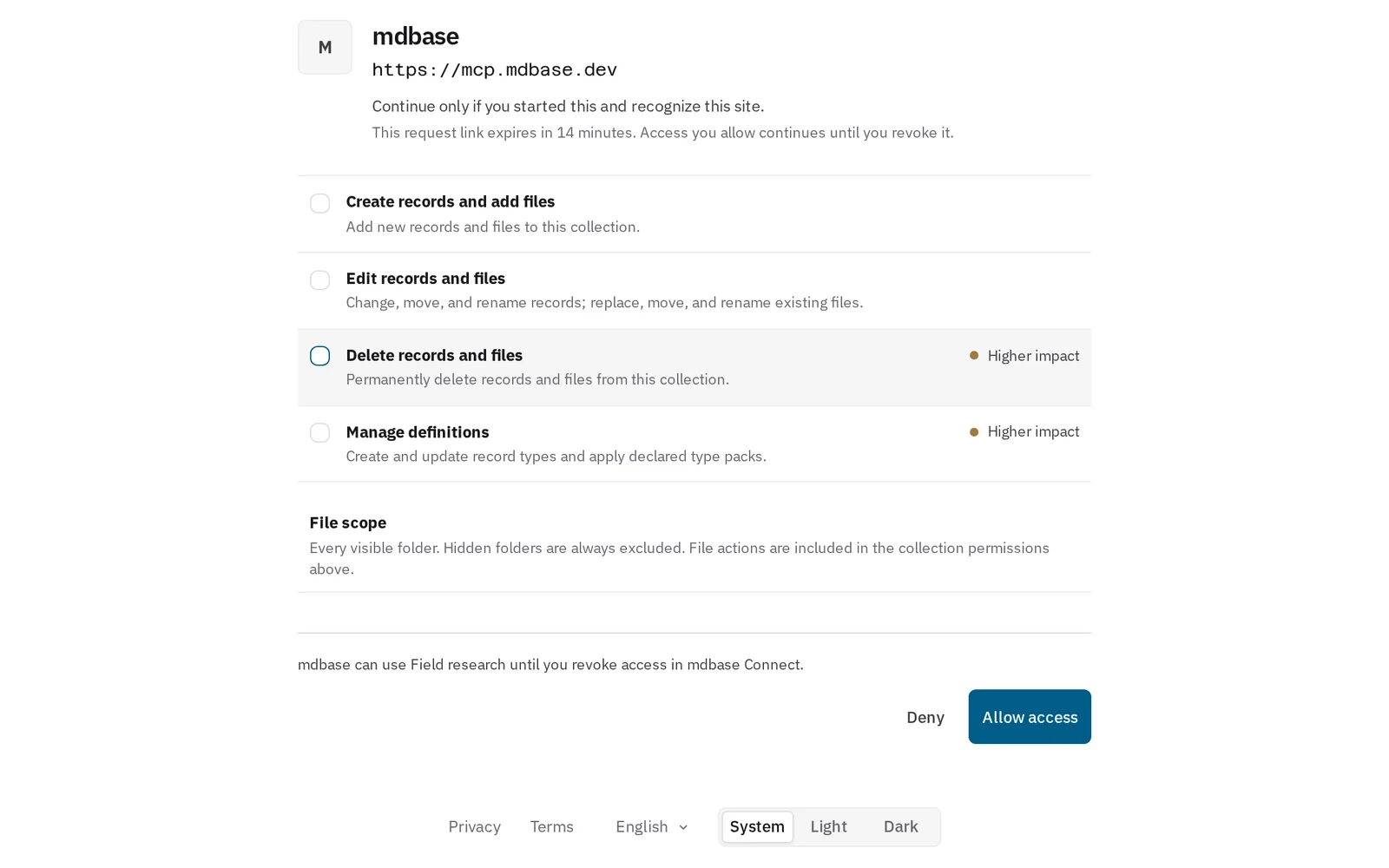
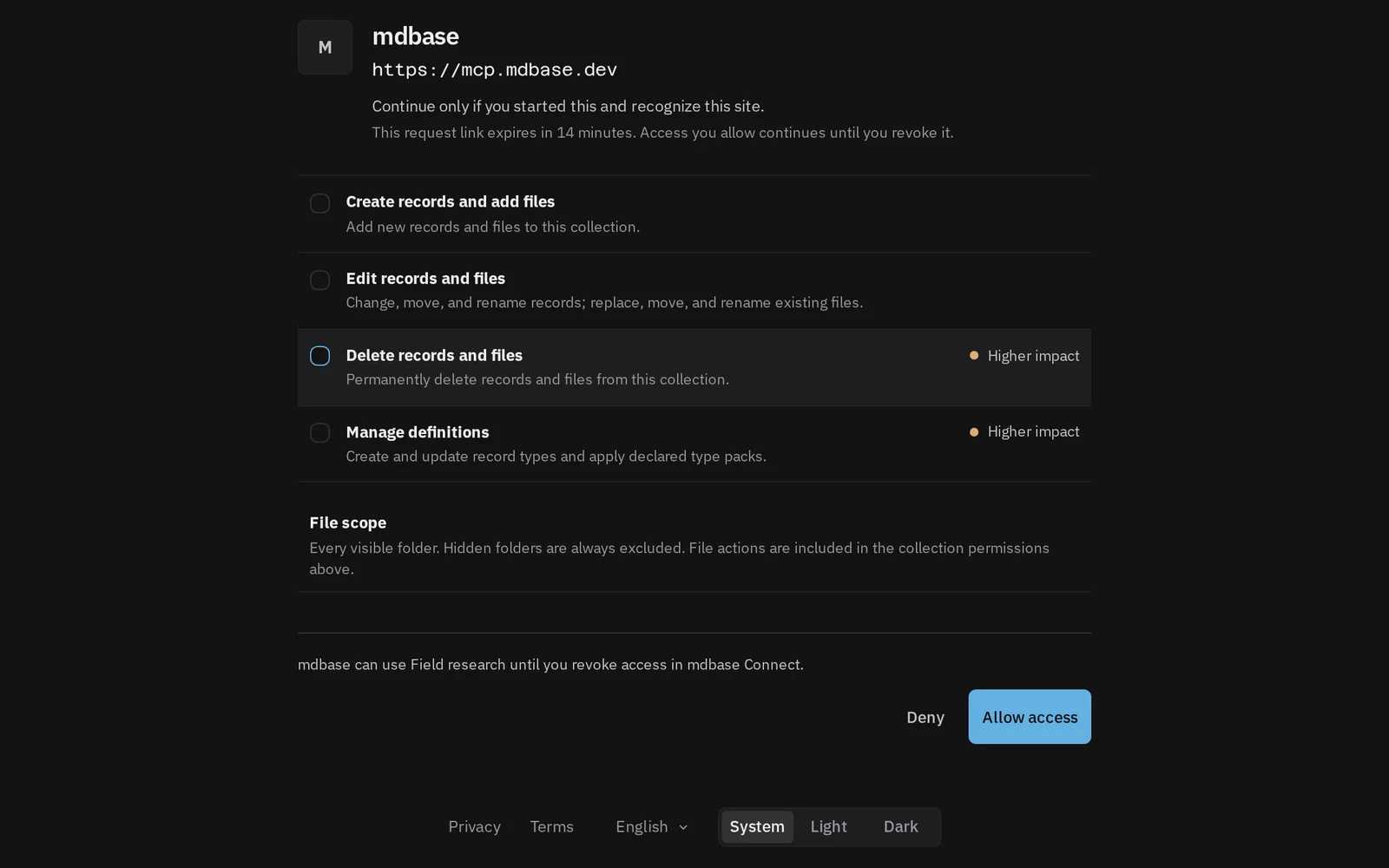
Review what the connector can do in the Field research collection. Silent recording with on-screen captions and sample data.
Text description of the recording
- The review screen identifies the mdbase connector and Field research.
- Create and edit permissions are cleared. Read access stays required.
- The file scope covers the visible folders in this collection.
- Allow access confirms the selection. Connect shows the approved collection.
3. Check which file the client reads
For the local server, ask the client to list its allowed directories, then read surveys/east-bank.md under the returned path. The terminal capture shows the responses from those two MCP calls against the example folder.
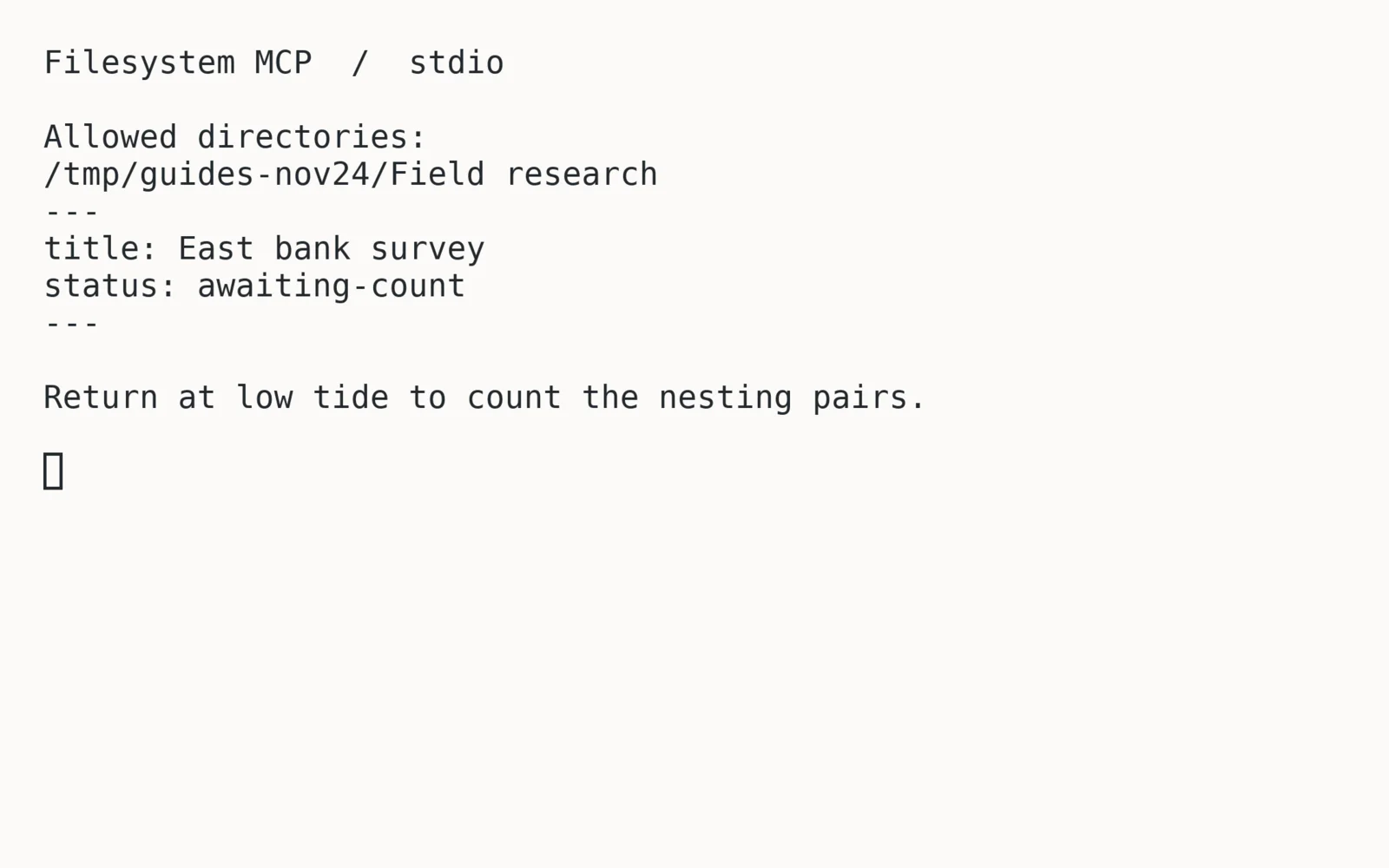
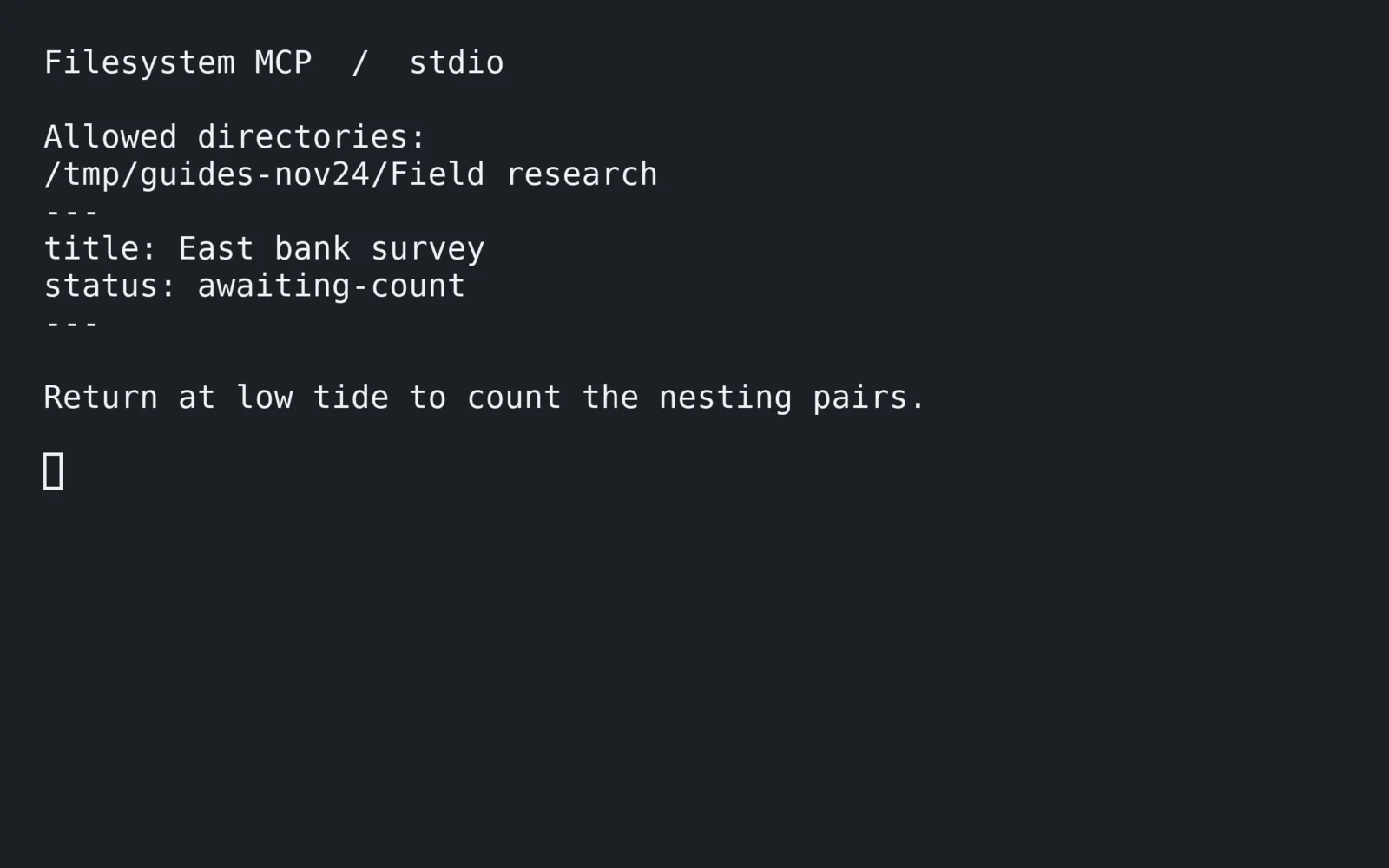
For the hosted server, ask the client to list its connected collections, choose the test collection and read the same relative path. Both routes should return the instruction about low tide. The hosted route also lets you ask for records where status equals awaiting-count without first supplying a path. Working with records
A local server reads files on your machine. When you use a hosted AI model, the client can still send the retrieved text to the model. For the hosted connector, the gateway processes the text as well. What the mdbase gateway can see
This page is the file content/guides/obsidian-mcp-servers.md, a record in the
site’s documentation collection.
Its frontmatter follows the doc-page type.
---
title: Obsidian MCP servers compared
description: Run a filesystem MCP server beside your Obsidian vault, or grant a hosted connector access to a synced collection. Compare permissions and offline access.
section: guides
---
Choose a local server if you want a desktop client to work directly with one folder. Choose the hosted mdbase connector if you want to reach the collection from a web client such as Claude or ChatGPT.
| | Local filesystem server | Hosted mdbase connector |
| --- | --- | --- |
| What you connect | A folder path on the computer running the client | One synced collection per approval |
| What the client can do | The reference server offers file reads and writes inside its allowed directories | Read records and query their properties. You can decline optional write permissions |
| What must be online | The computer with the vault and desktop client | With Cloud copy, the connector can read while your computer is off. With Private, a computer serving the collection must be online |
## 1. Make a test vault
Start with a folder containing just this file. Open the folder as a vault in Obsidian. Keep the copy small enough to check exactly which files you’re offering to the client. [How Obsidian stores notes](https://obsidian.md/help/vault)
```markdown title="surveys/east-bank.md"
---
title: East bank survey
status: awaiting-count
---
Return at low tide to count the nesting pairs.
```
## 2. Connect your preferred server
### Local folder in Claude Desktop
You need Claude Desktop, Node.js with `npx`, and the absolute path to the test vault. In Claude Desktop’s application menu, open **Settings → Developer → Edit Config**. Add the following entry to the configuration. Keep any servers you already use under `mcpServers`. Replace the example path with your vault’s location. On Windows, escape each backslash in the JSON string.
```json title="claude_desktop_config.json"
{
"mcpServers": {
"vault": {
"command": "npx",
"args": ["-y", "@modelcontextprotocol/server-filesystem", "/absolute/path/to/Field research"]
}
}
}
```
Save and fully restart Claude Desktop. It starts the server as a local process and talks to it over standard input and output. The filesystem server offers editing tools too. Review the tool name and file path before approving a request. [Official local MCP setup](https://modelcontextprotocol.io/docs/develop/connect-local-servers)
### Hosted collection in a web client
Use one sync service for a given folder. If you already sync this vault, decide which service will own that job before you turn on mdbase sync. The [mdbase plugin for Obsidian](https://github.com/mdbase-dev/mdbase-obsidian#sync) can sync the vault in place of the desktop app.
You need an mdbase account and the [Connect desktop app](/downloads/). Add the folder under **Collections → Add existing**, then **Turn on sync** in its actions menu. Choose **Cloud copy** for access while this computer is off, or **Private** for an encrypted copy. Follow the setup for [Claude](/guides/claude-obsidian/) or [ChatGPT](/guides/chatgpt-markdown/) using `https://mcp.mdbase.dev/mcp`.
On the mdbase approval screen, select the test collection. Keep read access and clear the optional permissions.


## 3. Check which file the client reads
<svg class="guide-route" viewBox="0 0 540 118" role="img" aria-label="On your computer, a desktop client calls a local process that reads the vault folder. A web client calls the hosted gateway to read a synced collection.">
<rect x="1" y="6" width="135" height="44" rx="6"/><text x="68" y="34">Desktop client</text>
<rect x="195" y="6" width="150" height="44" rx="6"/><text x="270" y="34">Local process</text>
<rect x="404" y="6" width="135" height="44" rx="6"/><text x="471" y="34">Vault folder</text>
<rect x="1" y="68" width="135" height="44" rx="6"/><text x="68" y="96">Web client</text>
<rect x="195" y="68" width="150" height="44" rx="6"/><text x="270" y="96">MCP gateway</text>
<rect x="404" y="68" width="135" height="44" rx="6"/><text x="471" y="96">Collection</text>
<path class="request" d="M137 28h55m154 0h55M137 90h55m154 0h55"/><path d="m184 23 8 5-8 5m209-10 8 5-8 5m-209 52 8 5-8 5m209-10 8 5-8 5"/>
</svg>
For the local server, ask the client to list its allowed directories, then read `surveys/east-bank.md` under the returned path. The terminal capture shows the responses from those two MCP calls against the example folder.

For the hosted server, ask the client to list its connected collections, choose the test collection and read the same relative path. Both routes should return the instruction about low tide. The hosted route also lets you ask for records where `status` equals `awaiting-count` without first supplying a path. [Working with records](/apps/mcp/working-with-records/)
A local server reads files on your machine. When you use a hosted AI model, the client can still send the retrieved text to the model. For the hosted connector, the gateway processes the text as well. [What the mdbase gateway can see](/apps/mcp/data-handling/)