Write a thesis in Markdown with citations
Use mdbase Writer to cite sources from Reader, typeset a thesis and download editable Markdown with its bibliography and citation style.Write your chapters in Markdown and cite each source by its key, such as [@darwinStructure42]. Writer looks up the source in your Reader library and formats both the citation and its bibliography entry.
To follow the example, open the Writer demo. It includes the cited book and resets when you reload. For your own thesis, open Writer, connect the collection that holds your Reader sources and check that each source has a unique citekey and citation metadata.
1. Create a thesis manuscript
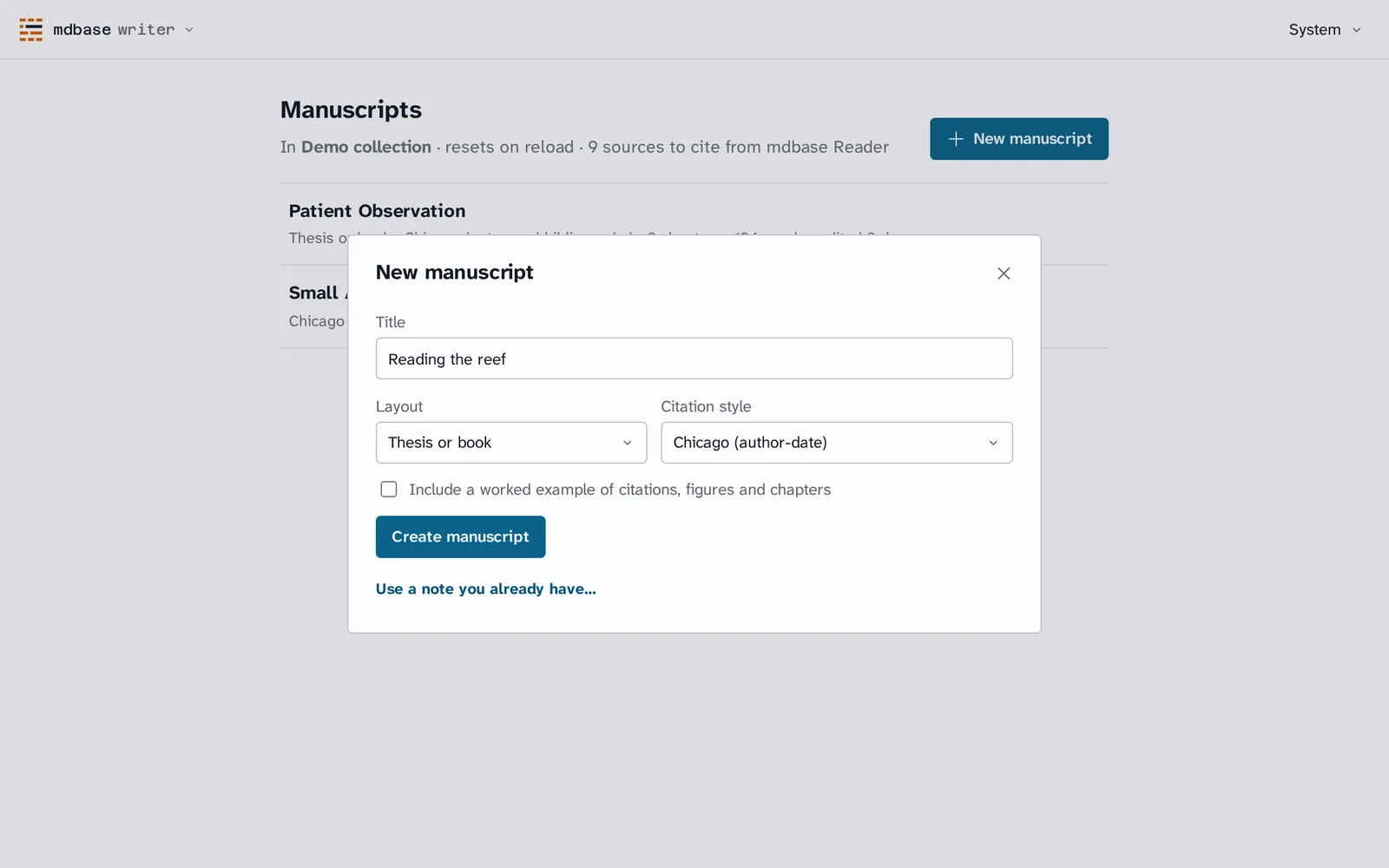
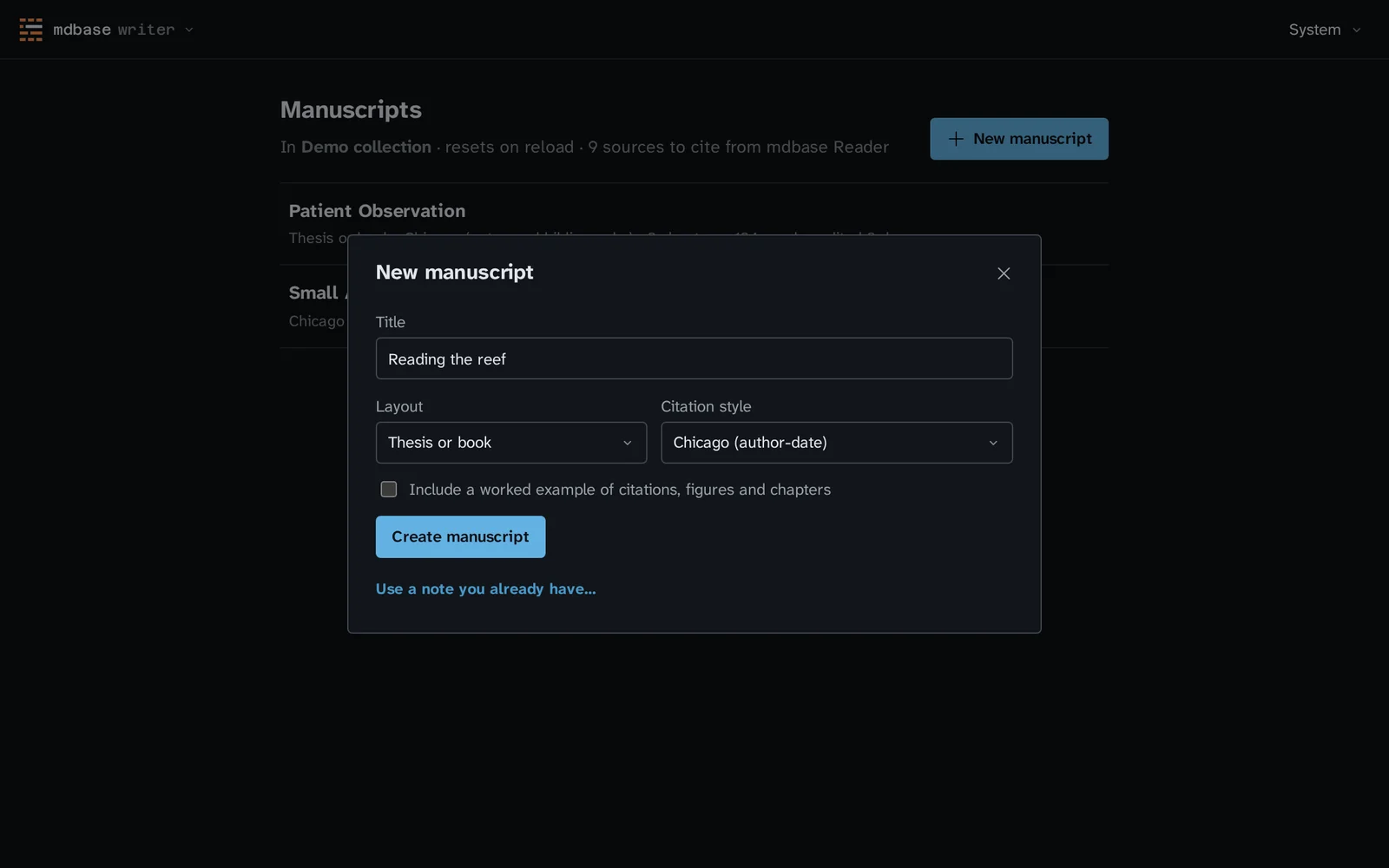
Choose New manuscript, enter a title and set Layout to Thesis or book. Select the citation style required by your department. This example uses Chicago (author-date). Leave the worked example unchecked and choose Create manuscript.
2. Insert a source at the claim it supports
Type # Field evidence on a line of its own. Leave a blank line, then write “Darwin traces the formation of atolls” followed by a space. With the cursor there, open Sources with Ctrl+Shift+E (⌘+Shift+E on Mac). Search for darwinStructure42 in the demo, or for the title or key of your own source.
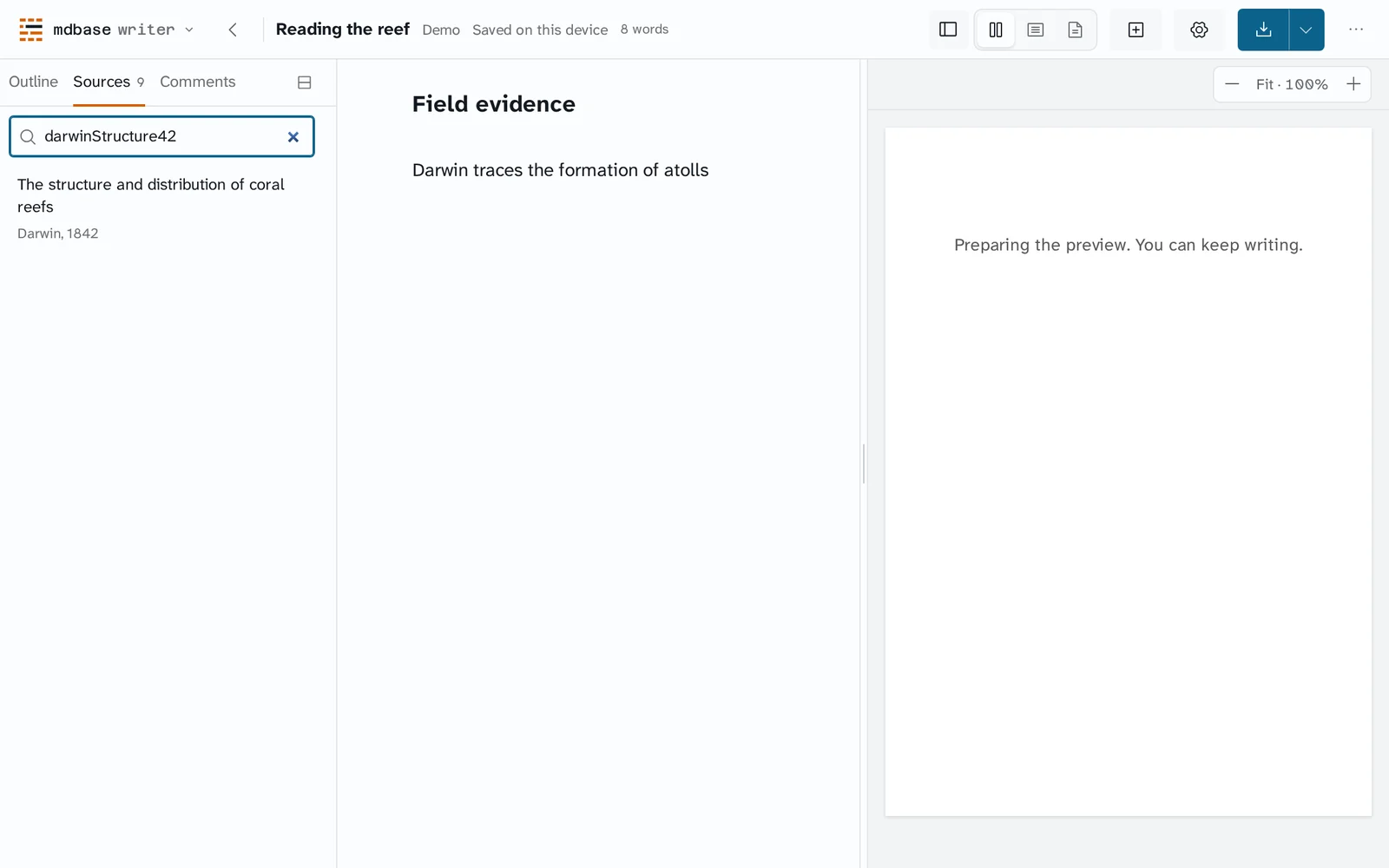
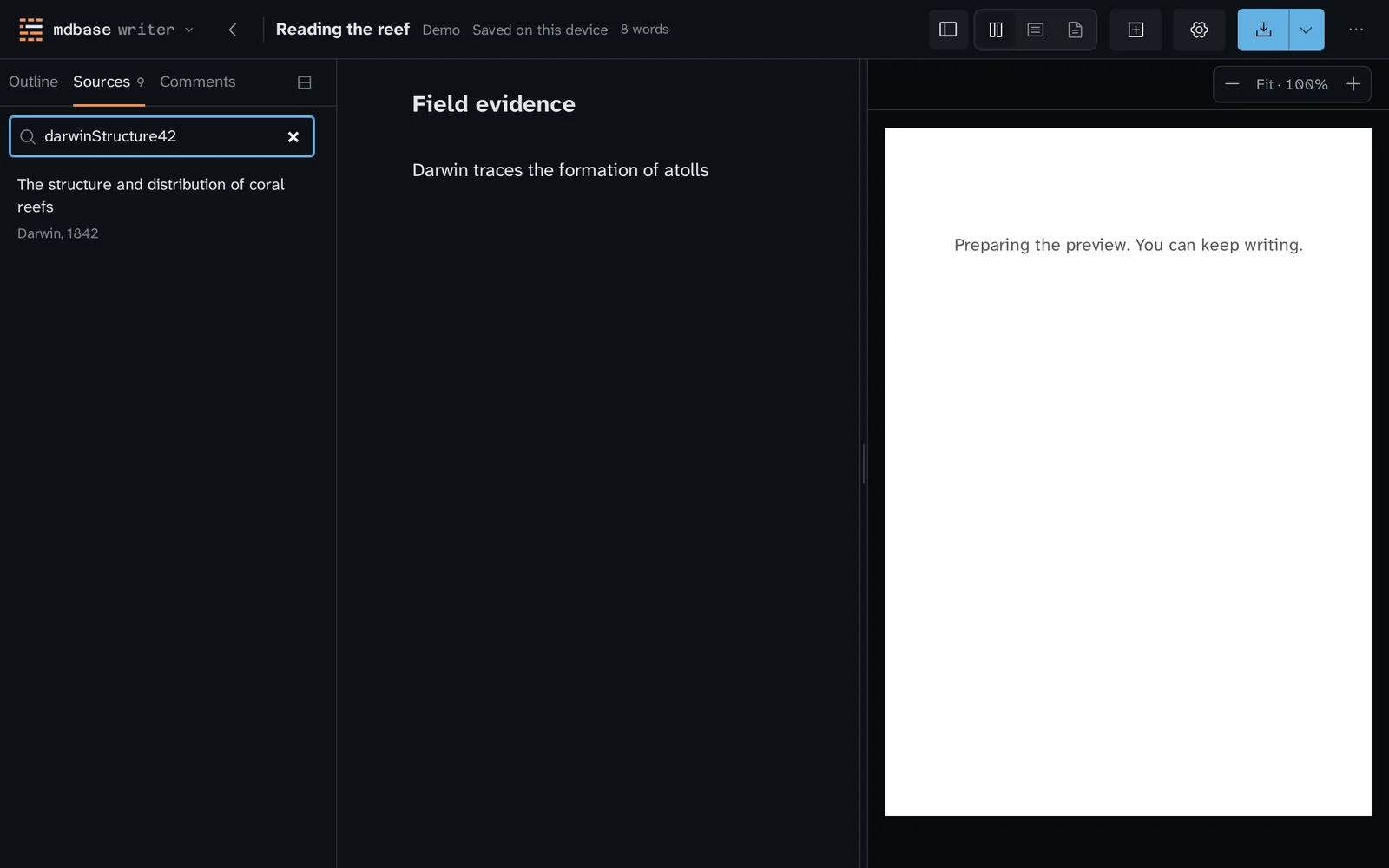
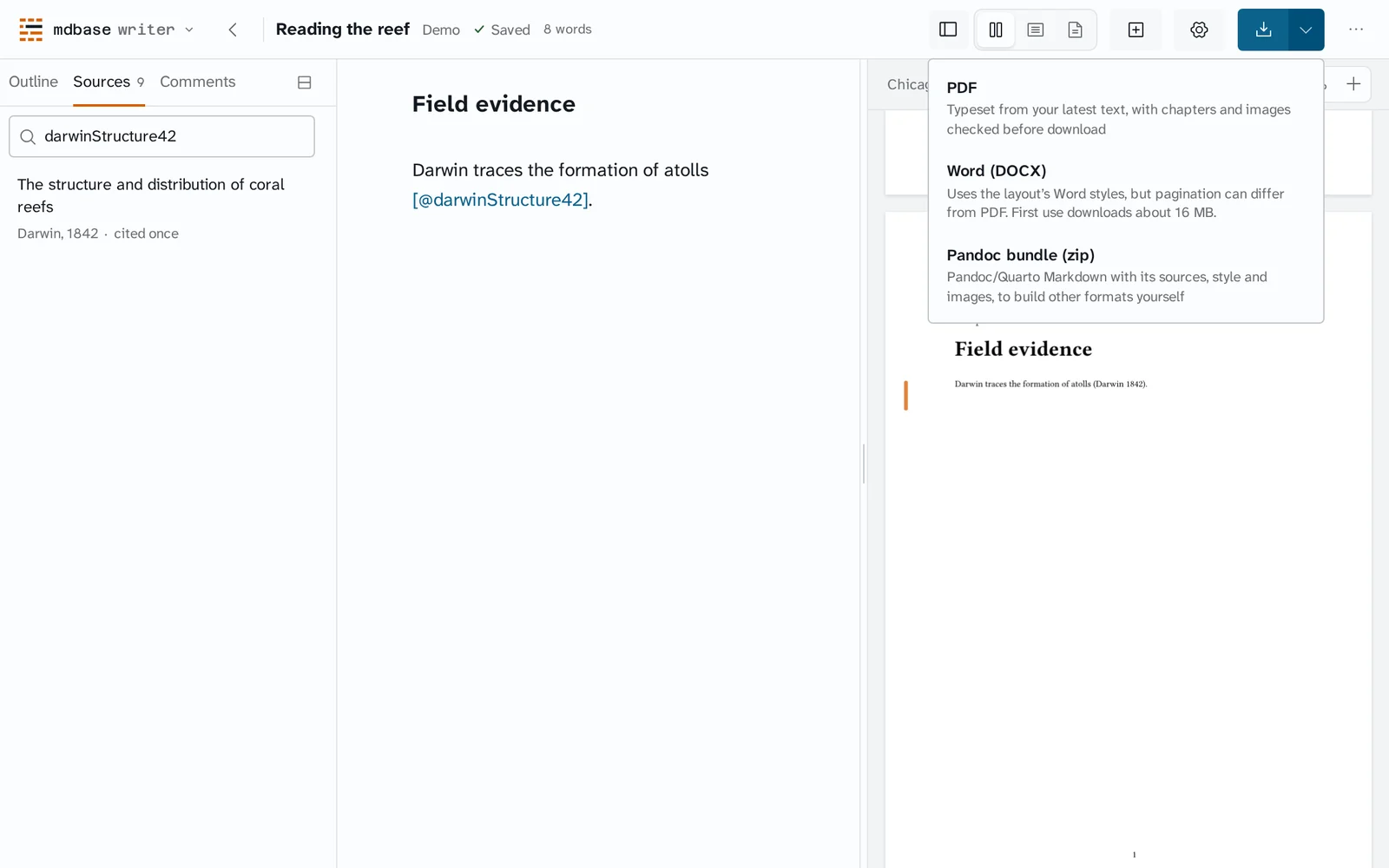
Press Enter to cite the first match. Type the final period. The Markdown now ends with [@darwinStructure42]. and the preview reads “(Darwin 1842).” Look for the full book entry under Bibliography. To cite a particular page, include its locator inside the brackets, as in [@darwinStructure42, p. 12]. Check the page against the edition you used.
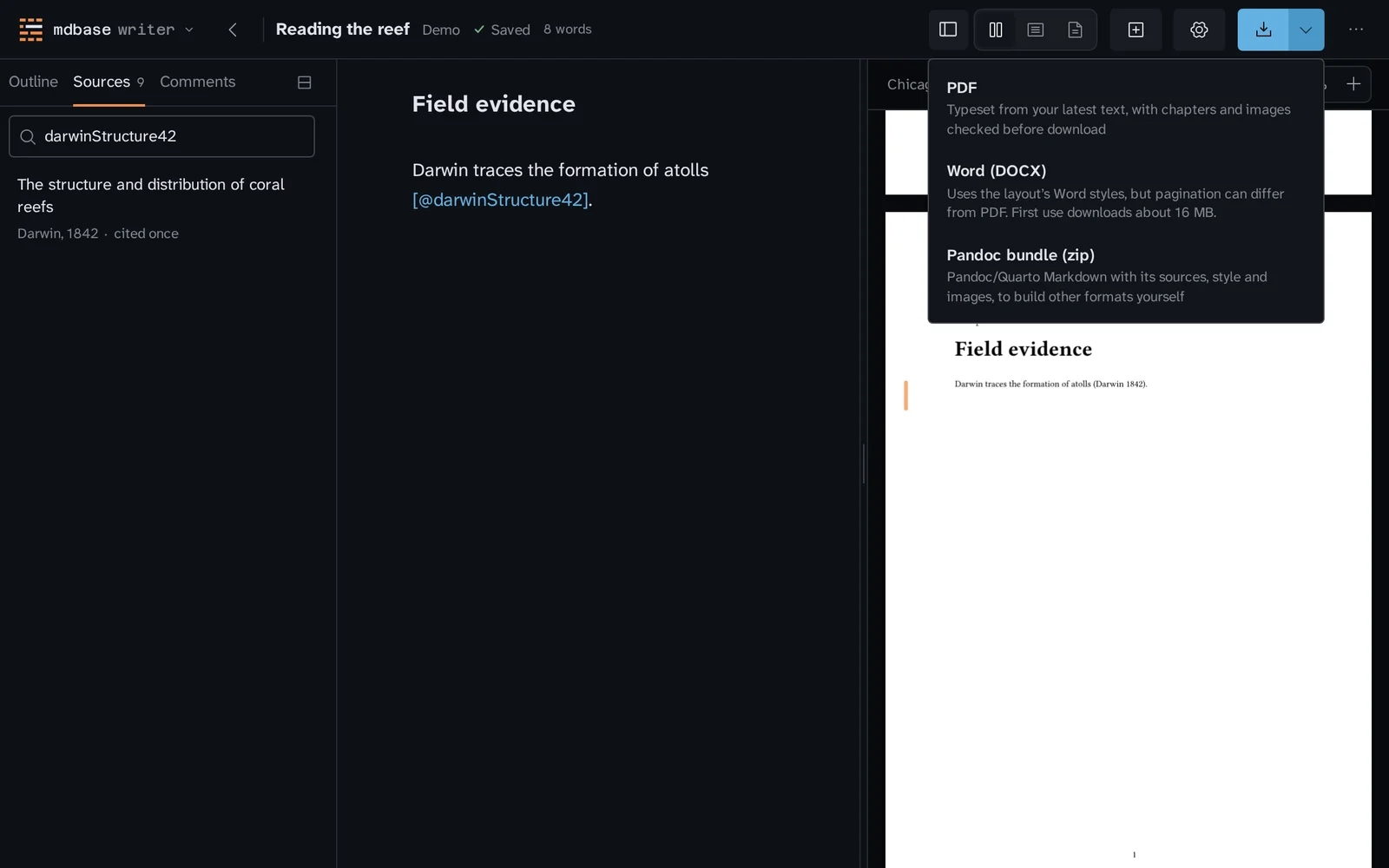
Writer inserts a Reader citekey into an original thesis passage and formats it in the preview. Silent recording with on-screen captions and sample data.
Text description of the recording
- Find Darwin’s coral reef study in Sources.
- Insert its citekey after the claim.
- Check the formatted citation in the thesis preview.
- Open the export formats and select the Pandoc bundle.
3. Export a copy with its references
In the menu beside Export, choose Pandoc bundle (zip). Unzip the download. Keep references.json and style.csl beside manuscript.md. The first file contains the cited book’s metadata. The second tells a citation processor how to display it.
Here is the complete manuscript.md from the example download. Its frontmatter names the two companion files. In the collection, Writer keeps layout and citation-style choices in the manuscript record.
---
title: Reading the reef
lang: en-US
number-sections: true
bibliography: references.json
csl: style.csl
link-citations: true
reference-section-title: Bibliography
---

# Field evidence

Darwin traces the formation of atolls [@darwinStructure42].
Add chapters and prepare the submission
For a longer thesis, put each chapter in its own record and add its embed, such as ![[chapters/results]], on a separate line in the main manuscript. Writer assembles the chapters in order before resolving citations. See chapters and embeds for the steps and a recording.
Use PDF when you need the typeset layout. Word uses separate document styles and can paginate differently. In the file you plan to submit, inspect the references, captions and page breaks, and compare them with your department’s requirements. Layouts and export formats
This page is the file content/guides/markdown-thesis.md, a record in the
site’s documentation collection.
Its frontmatter follows the doc-page type.
---
title: Write a thesis in Markdown with citations
description: Use mdbase Writer to cite sources from Reader, typeset a thesis and download editable Markdown with its bibliography and citation style.
section: guides
---
Write your chapters in Markdown and cite each source by its key, such as `[@darwinStructure42]`. Writer looks up the source in your Reader library and formats both the citation and its bibliography entry.
To follow the example, open the [Writer demo](https://lab.mdbase-writer.pages.dev/?demo). It includes the cited book and resets when you reload. For your own thesis, open [Writer](https://writer.mdbase.dev), connect the collection that holds your Reader sources and check that each source has a [unique citekey and citation metadata](/apps/reader/notes/#citation).
## 1. Create a thesis manuscript
Choose **New manuscript**, enter a title and set **Layout** to **Thesis or book**. Select the citation style required by your department. This example uses **Chicago (author-date)**. Leave the worked example unchecked and choose **Create manuscript**.

## 2. Insert a source at the claim it supports
Type `# Field evidence` on a line of its own. Leave a blank line, then write “Darwin traces the formation of atolls” followed by a space. With the cursor there, open **Sources** with **Ctrl+Shift+E** (**⌘+Shift+E** on Mac). Search for `darwinStructure42` in the demo, or for the title or key of your own source.

Press **Enter** to cite the first match. Type the final period. The Markdown now ends with `[@darwinStructure42].` and the preview reads “(Darwin 1842).” Look for the full book entry under **Bibliography**. To cite a particular page, include its locator inside the brackets, as in `[@darwinStructure42, p. 12]`. Check the page against the edition you used.

## 3. Export a copy with its references
In the menu beside **Export**, choose **Pandoc bundle (zip)**. Unzip the download. Keep `references.json` and `style.csl` beside `manuscript.md`. The first file contains the cited book’s metadata. The second tells a citation processor how to display it.

Here is the complete `manuscript.md` from the example download. Its frontmatter names the two companion files. In the collection, Writer keeps layout and citation-style choices in the [manuscript record](/apps/writer/data/#records).
```markdown title="manuscript.md"
---
title: Reading the reef
lang: en-US
number-sections: true
bibliography: references.json
csl: style.csl
link-citations: true
reference-section-title: Bibliography
---
# Field evidence
Darwin traces the formation of atolls [@darwinStructure42].
```
## Add chapters and prepare the submission
For a longer thesis, put each chapter in its own record and add its embed, such as `![[chapters/results]]`, on a separate line in the main manuscript. Writer assembles the chapters in order before resolving citations. See [chapters and embeds](/apps/writer/chapters/) for the steps and a recording.
Use PDF when you need the typeset layout. Word uses separate document styles and can paginate differently. In the file you plan to submit, inspect the references, captions and page breaks, and compare them with your department’s requirements. [Layouts and export formats](/apps/writer/export/)