Edit an Obsidian vault in your browser
Open your vault folder as an mdbase collection. Use mdbase Editor to edit the Markdown body and YAML properties, then open the same file in Obsidian.Use the Connect desktop app on the computer that holds your vault, and mdbase Editor in the browser. You need an mdbase account and the path to your vault. Obsidian describes a vault as a folder on your computer.
1. Make the vault available
Use one sync service for a given folder. If you already sync this vault, decide which service will own that job before you turn on mdbase sync. The mdbase plugin for Obsidian can sync the vault in place of the desktop app.
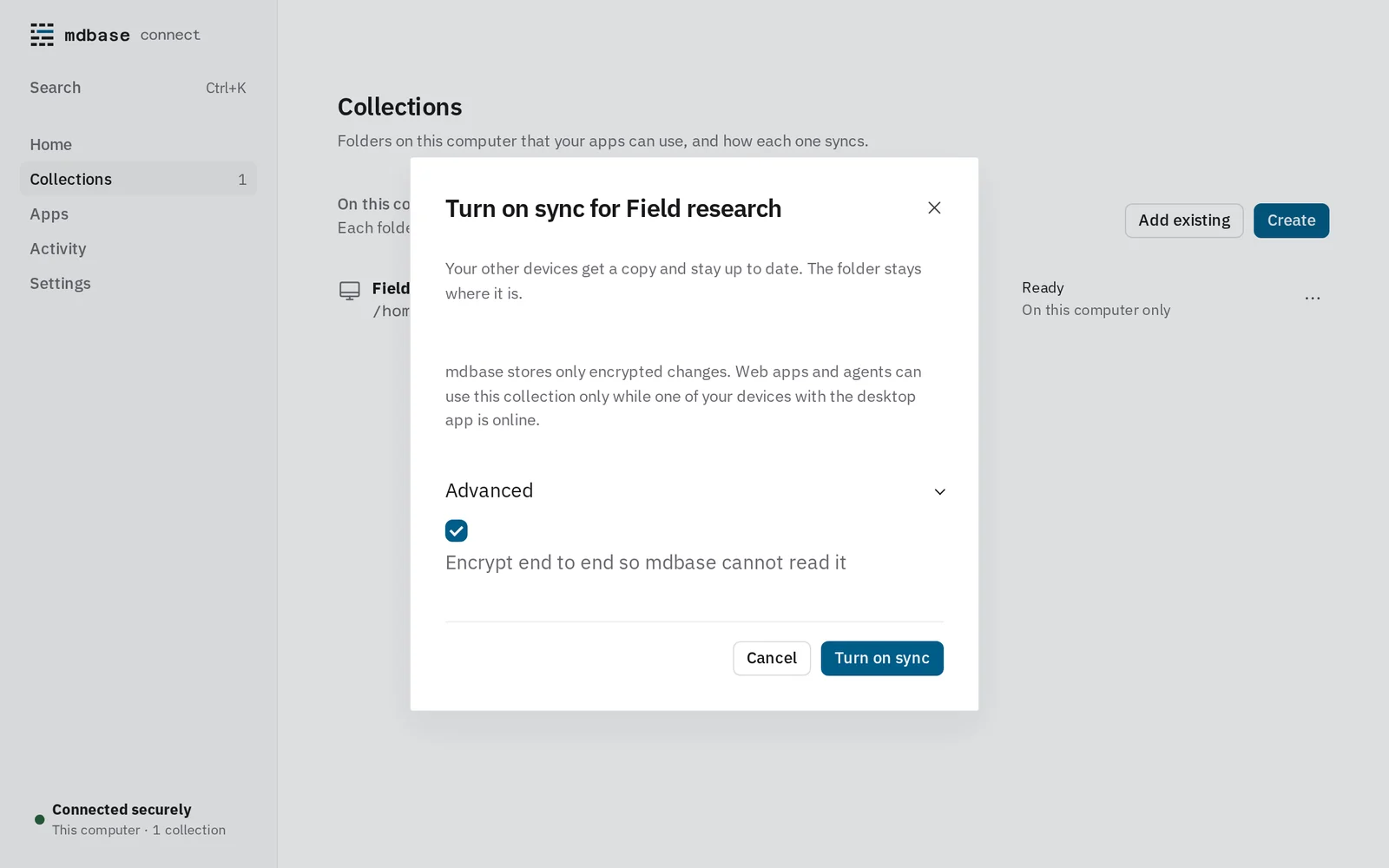
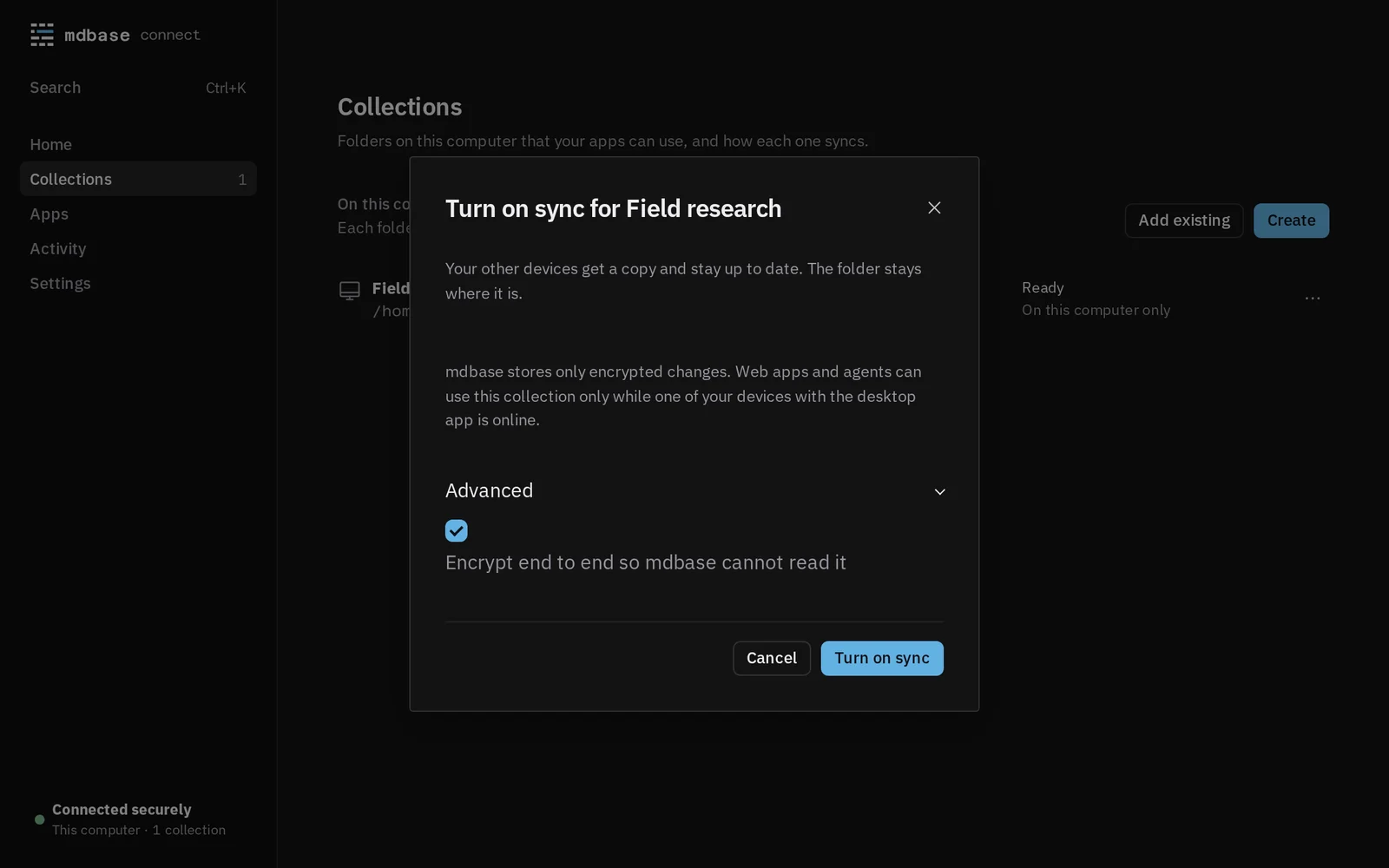
In the desktop app, sign in and open Collections → Add existing. Select the vault folder. Open its actions menu and choose Turn on sync. If your vault already syncs with mdbase, use that collection.
Choose Cloud copy (the default) if you need access while your computers are off. mdbase can read this copy. For Private, open Advanced, select end-to-end encryption and confirm. To use Editor with a Private collection, keep a computer that serves it online.
2. Open the collection in Editor
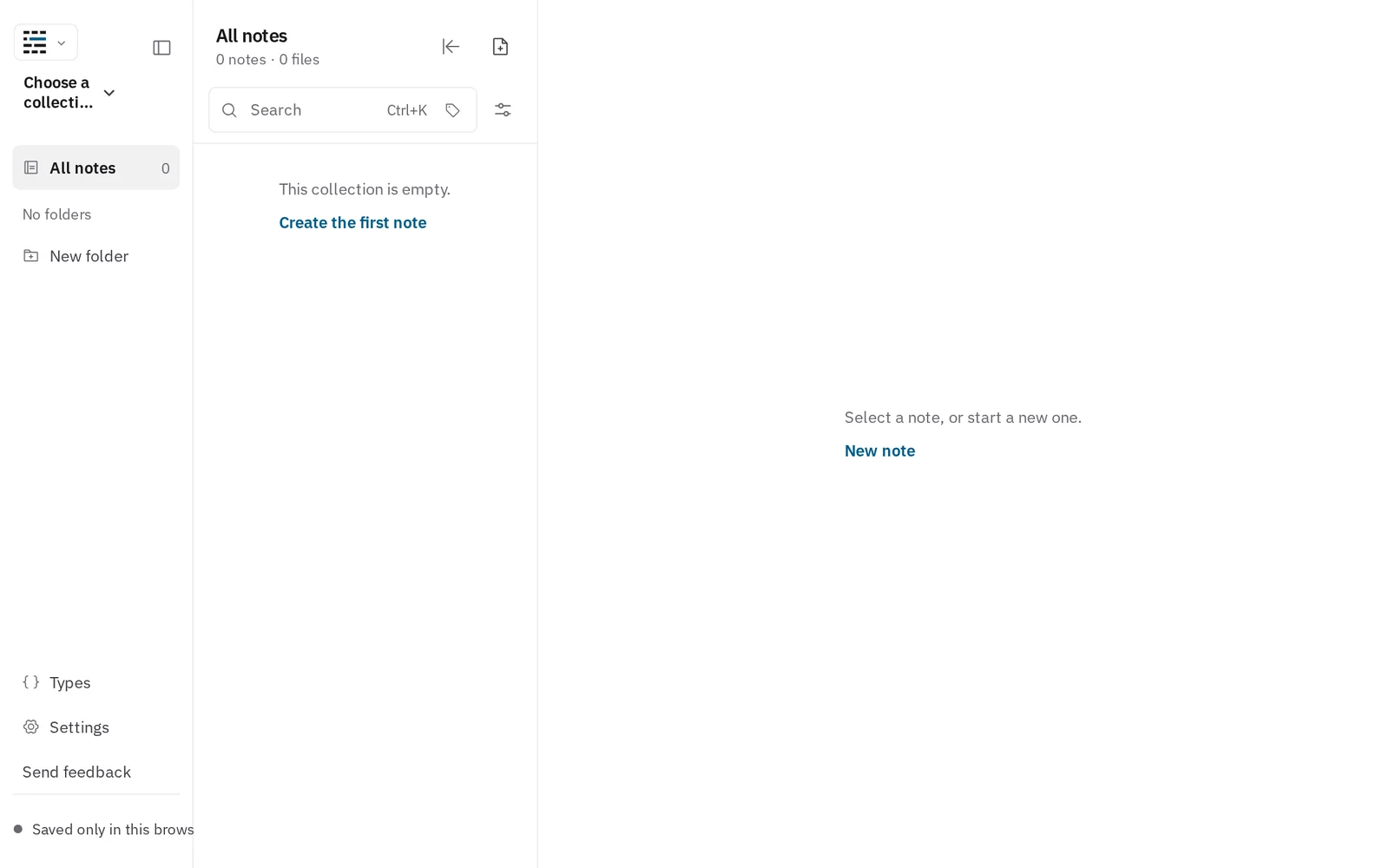
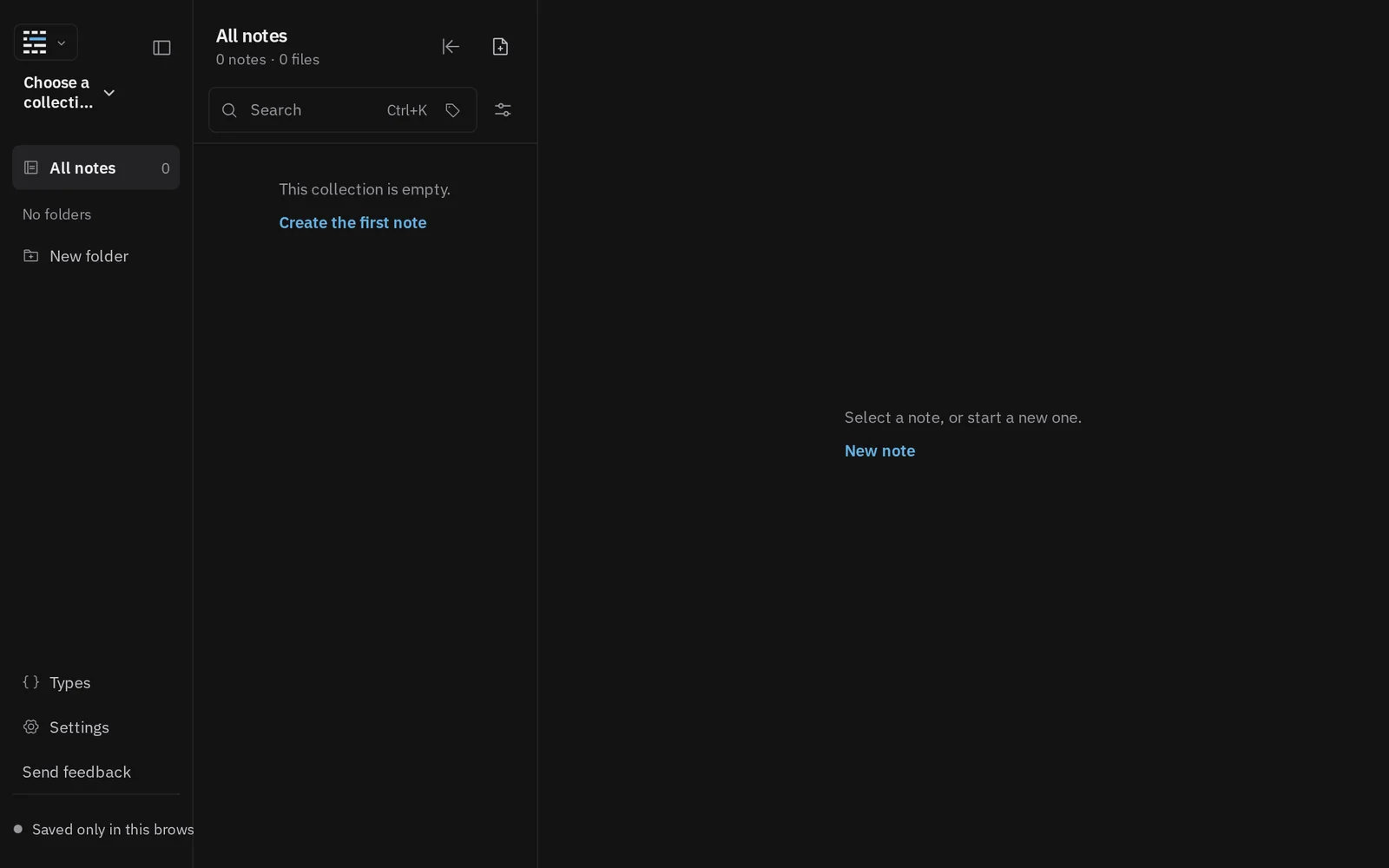
Open mdbase Editor and choose Choose a collection in the collections sidebar. Sign in and select your vault. If another collection is already open, choose Connect another collection. Review the name and the requested permissions. Allow reading and editing. To create the example below, also allow creating records.
Check that the collection name in the rail matches the vault. Saved only in this browser indicates a local workspace. Connect the vault before you expect changes to appear on your computer.
3. Write a note and edit it
Select an existing note, or choose New note. For a new note, use East bank survey as the title and write the field instruction below. Check the suggested path and press Ctrl Enter (⌘ Enter on Mac) to create it.
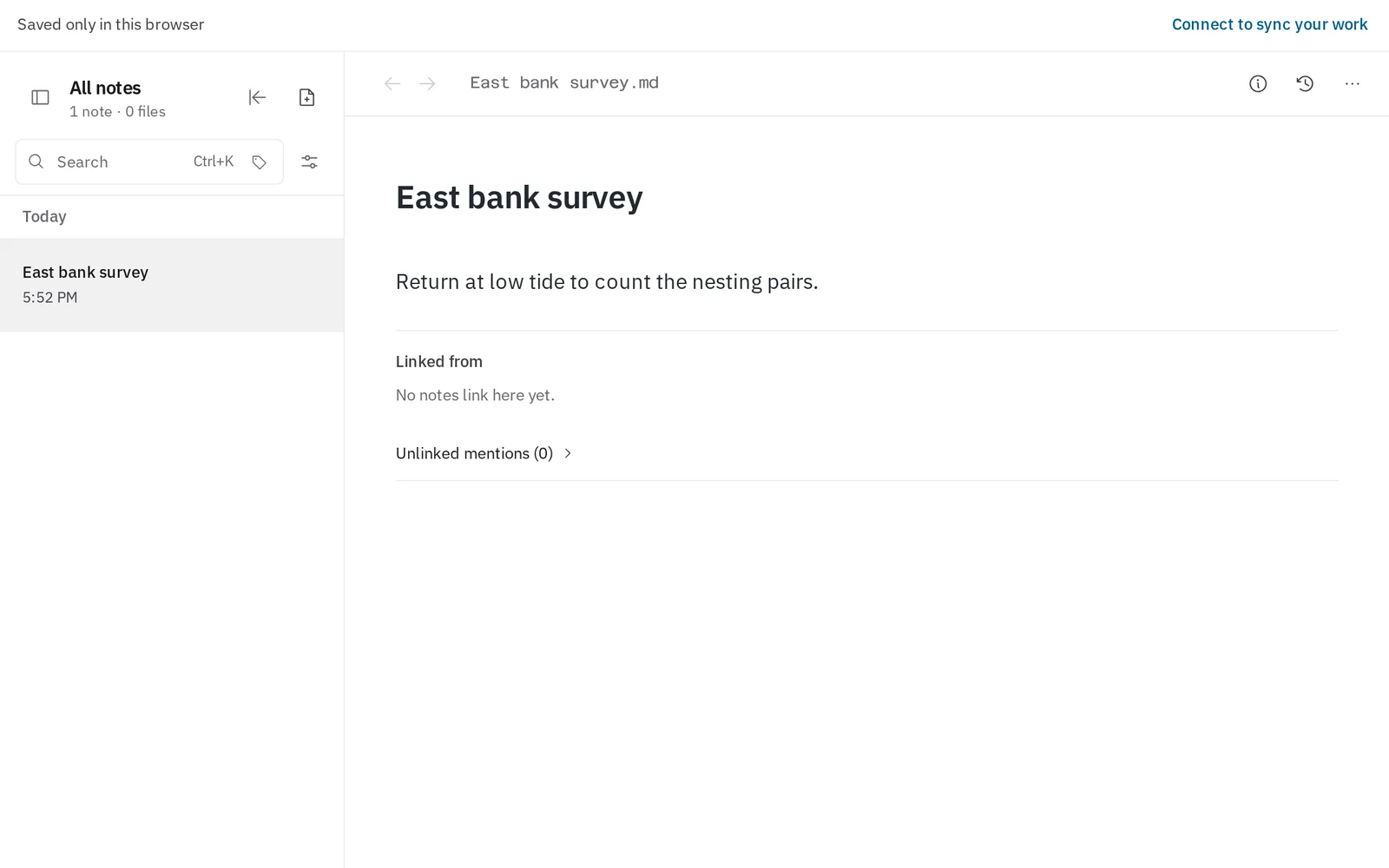
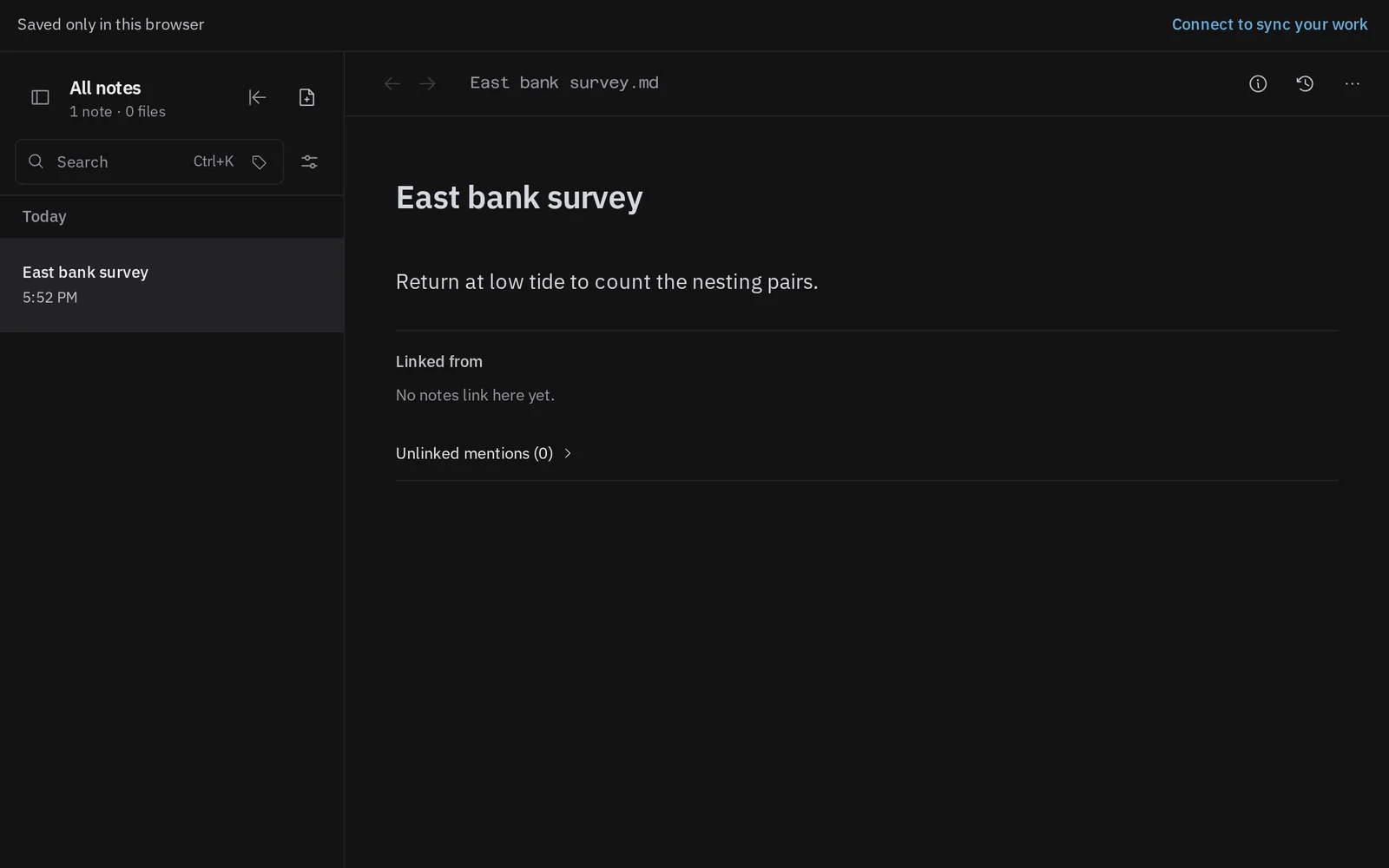
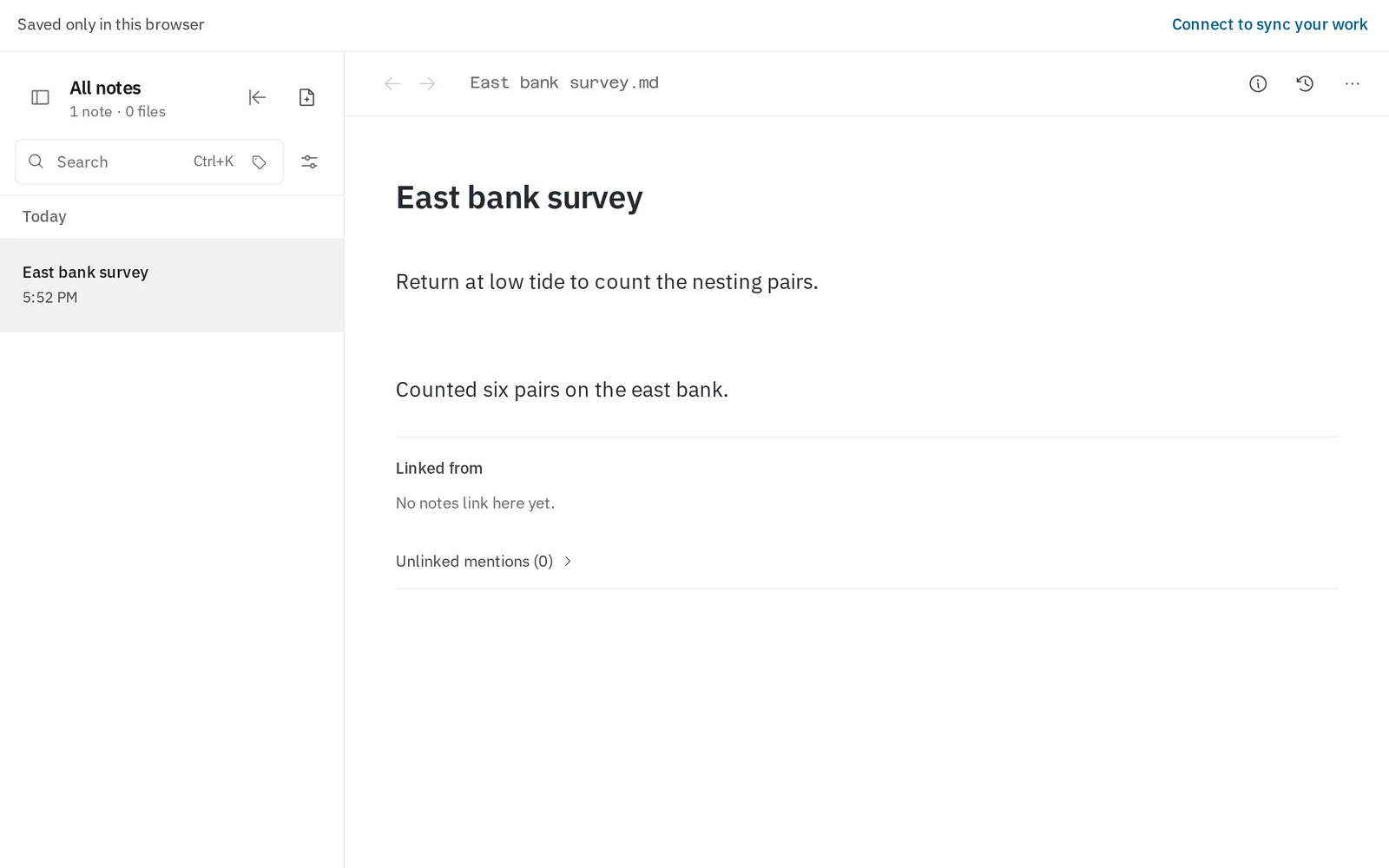
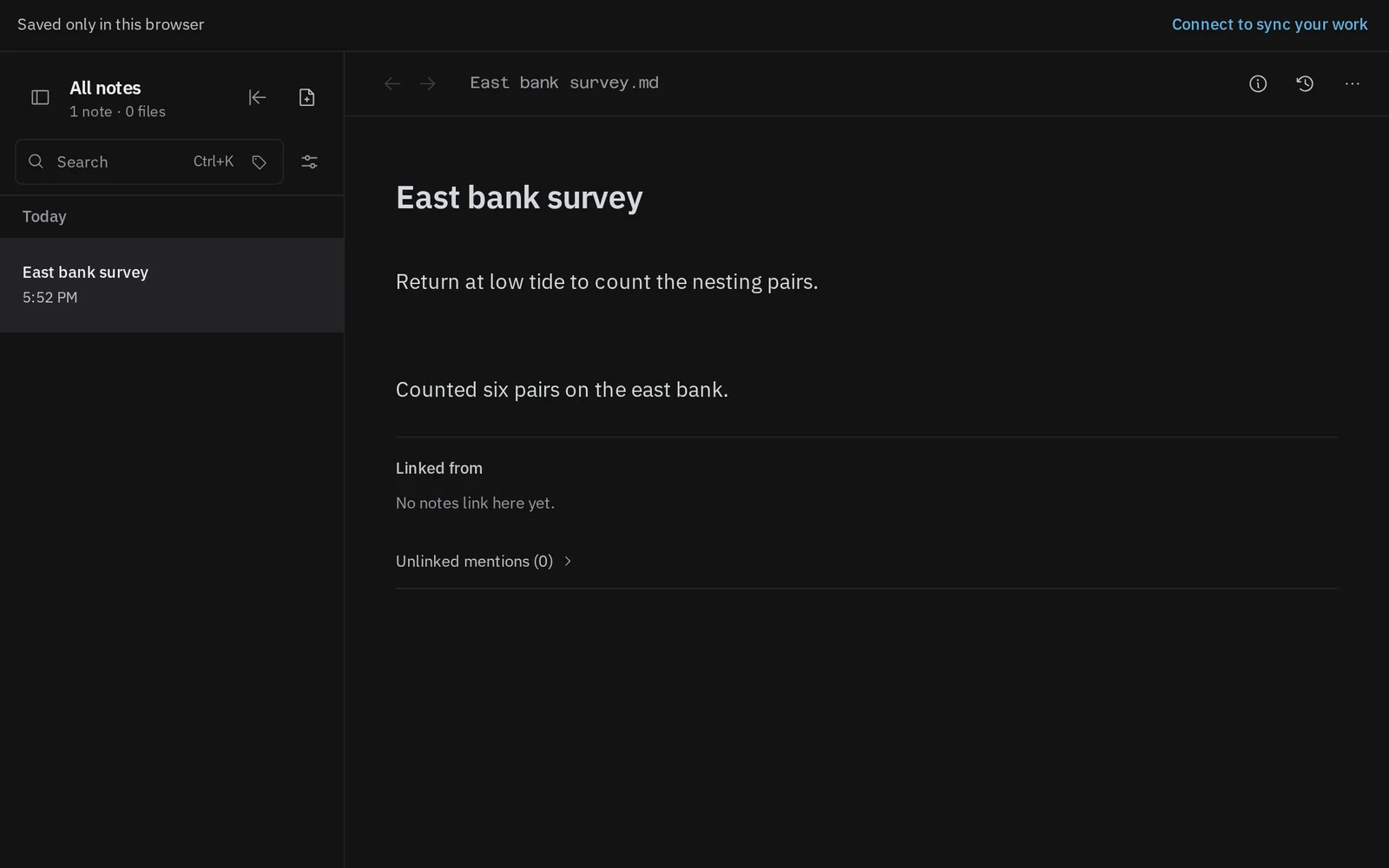
After the survey, open the note again. Add a second paragraph with your count. Editor saves edits to an existing note automatically. The screenshots use a browser-local sample so you can see the edit without granting access to a vault.
4. Check the Markdown and properties
Open Note properties. On a narrow screen, look under More note actions. In the properties panel, open Property options → Edit as source. Add the three frontmatter lines at the top of the note, then leave the field to save.
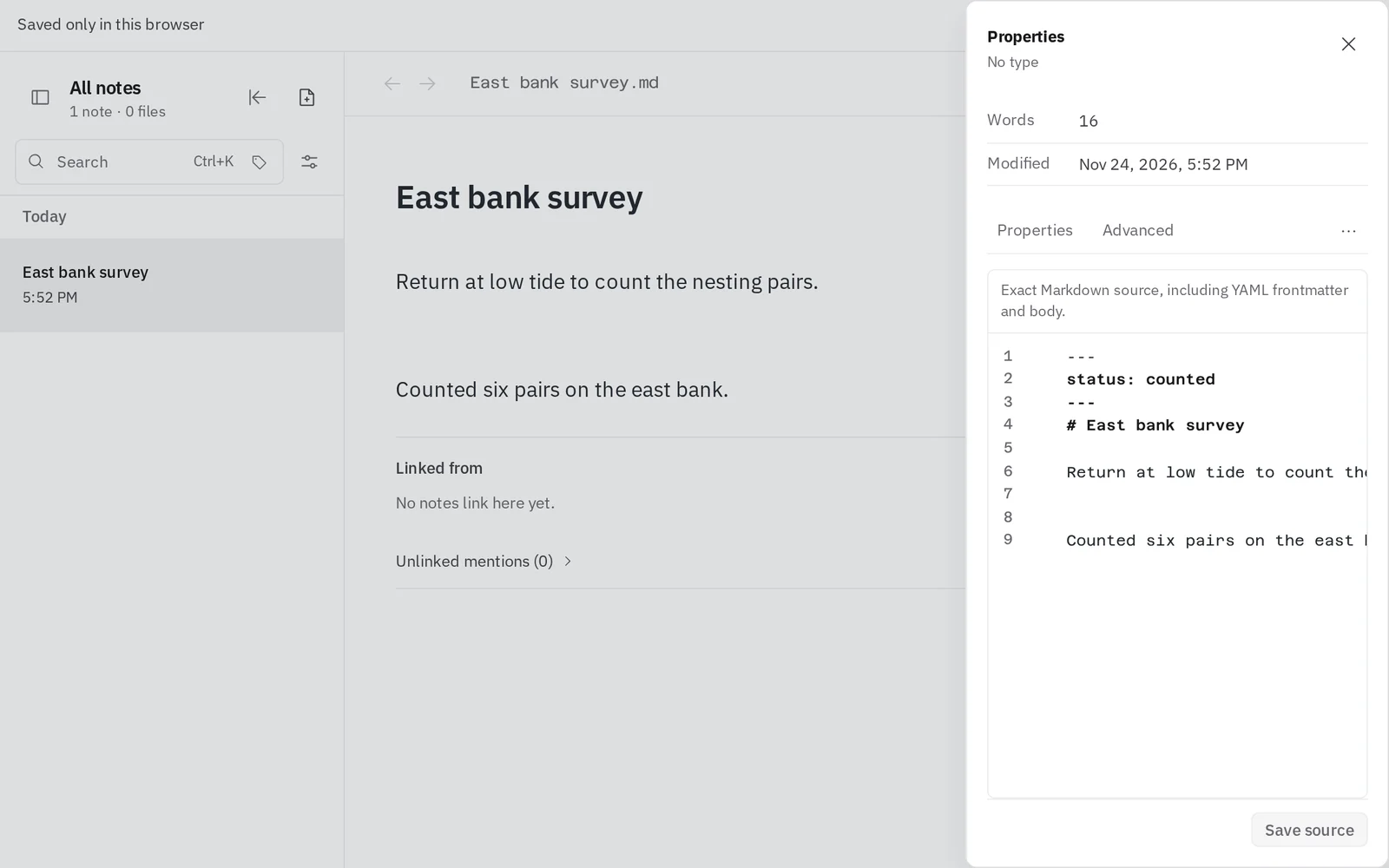
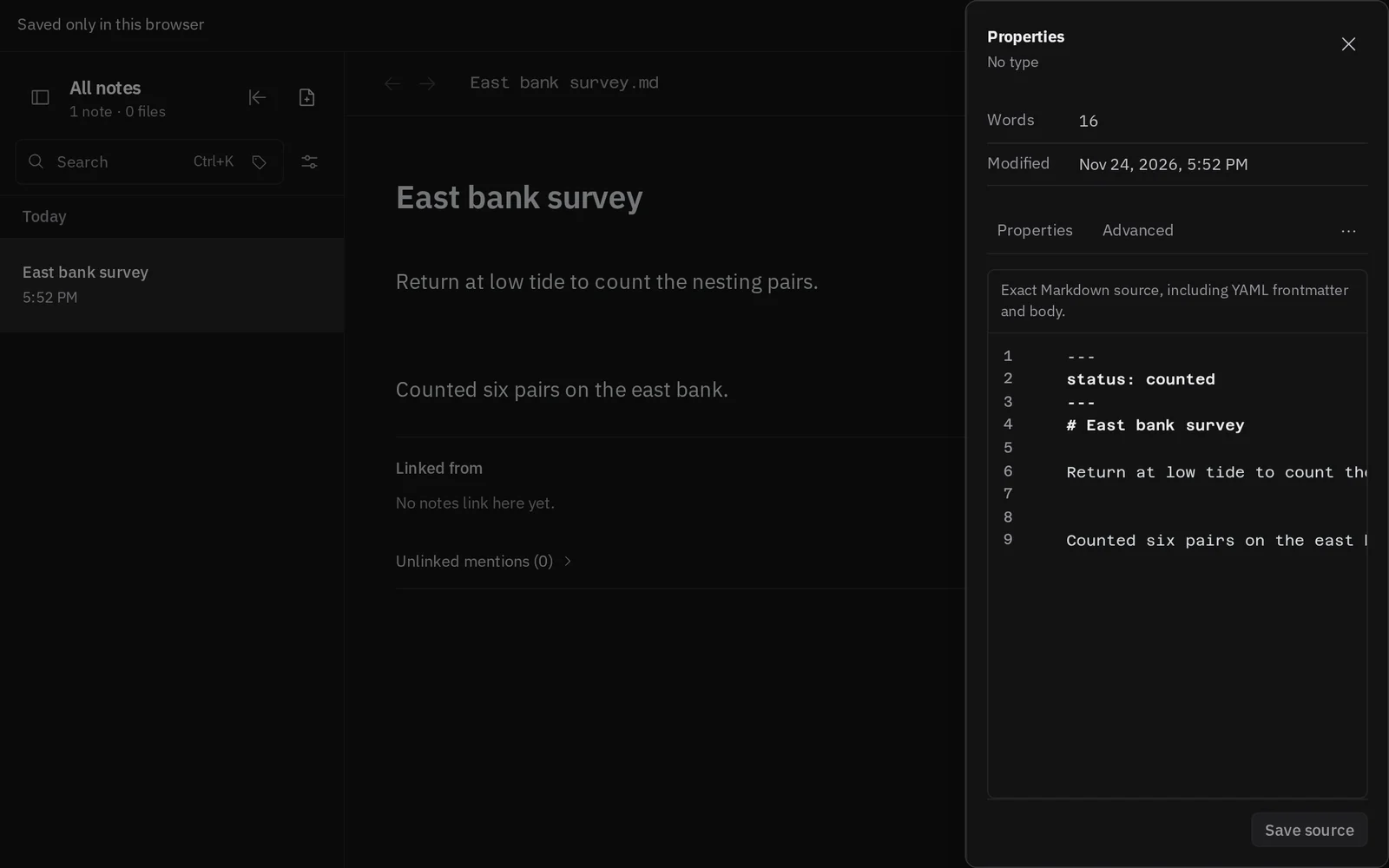
Open the properties of a survey note and check its saved status field. Silent recording with on-screen captions and sample data.
Text description of the recording
- Editor shows East bank survey after the count is added.
- Note properties opens the properties panel.
- Property options opens the menu with Edit as source.
- The source contains the status property, heading, field instruction and count.
With a connected collection, wait for the desktop app to finish syncing. Open the same note in Obsidian. This is the file to check:
---
status: counted
---
# East bank survey

Return at low tide to count the nesting pairs.


Counted six pairs on the east bank.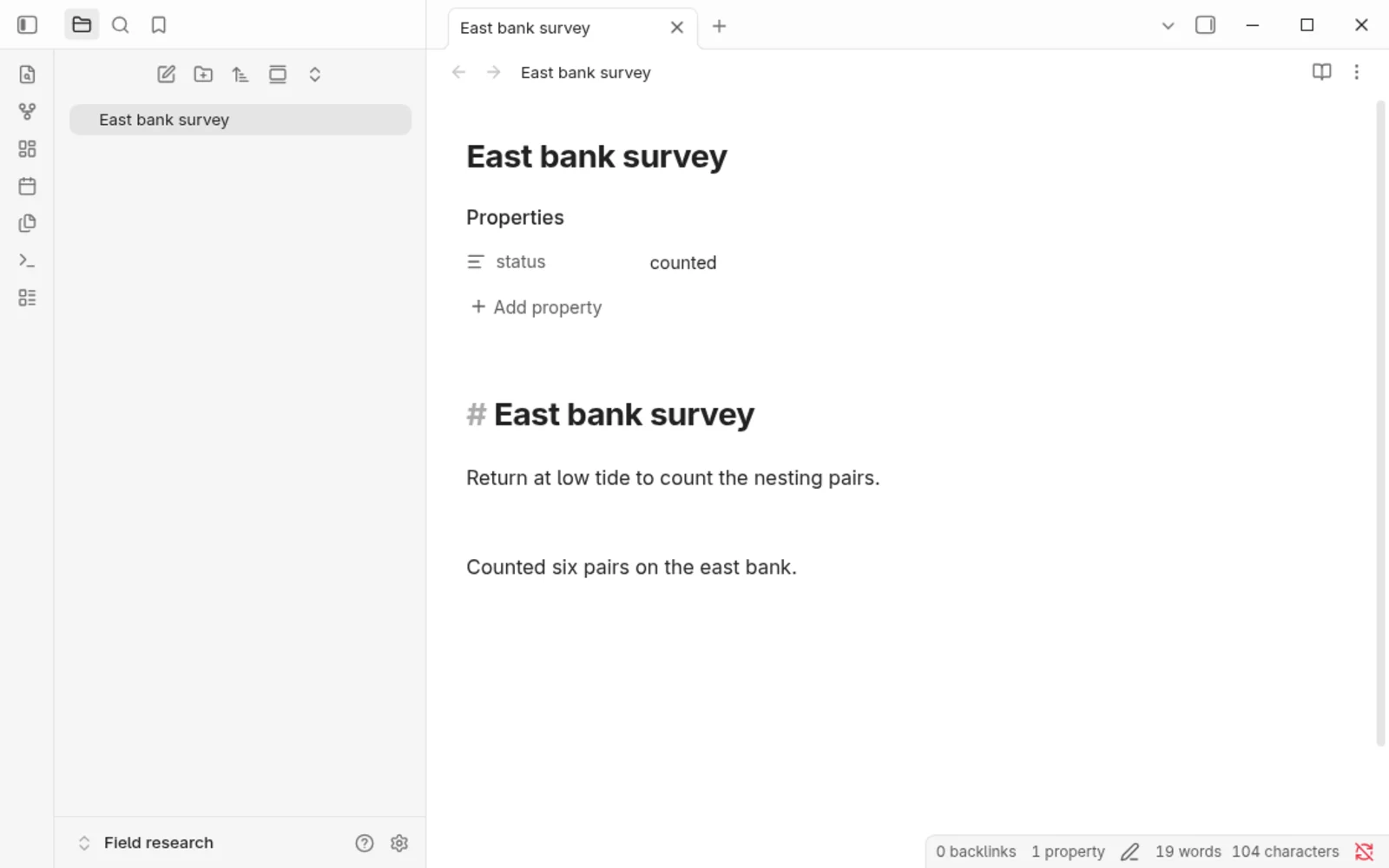
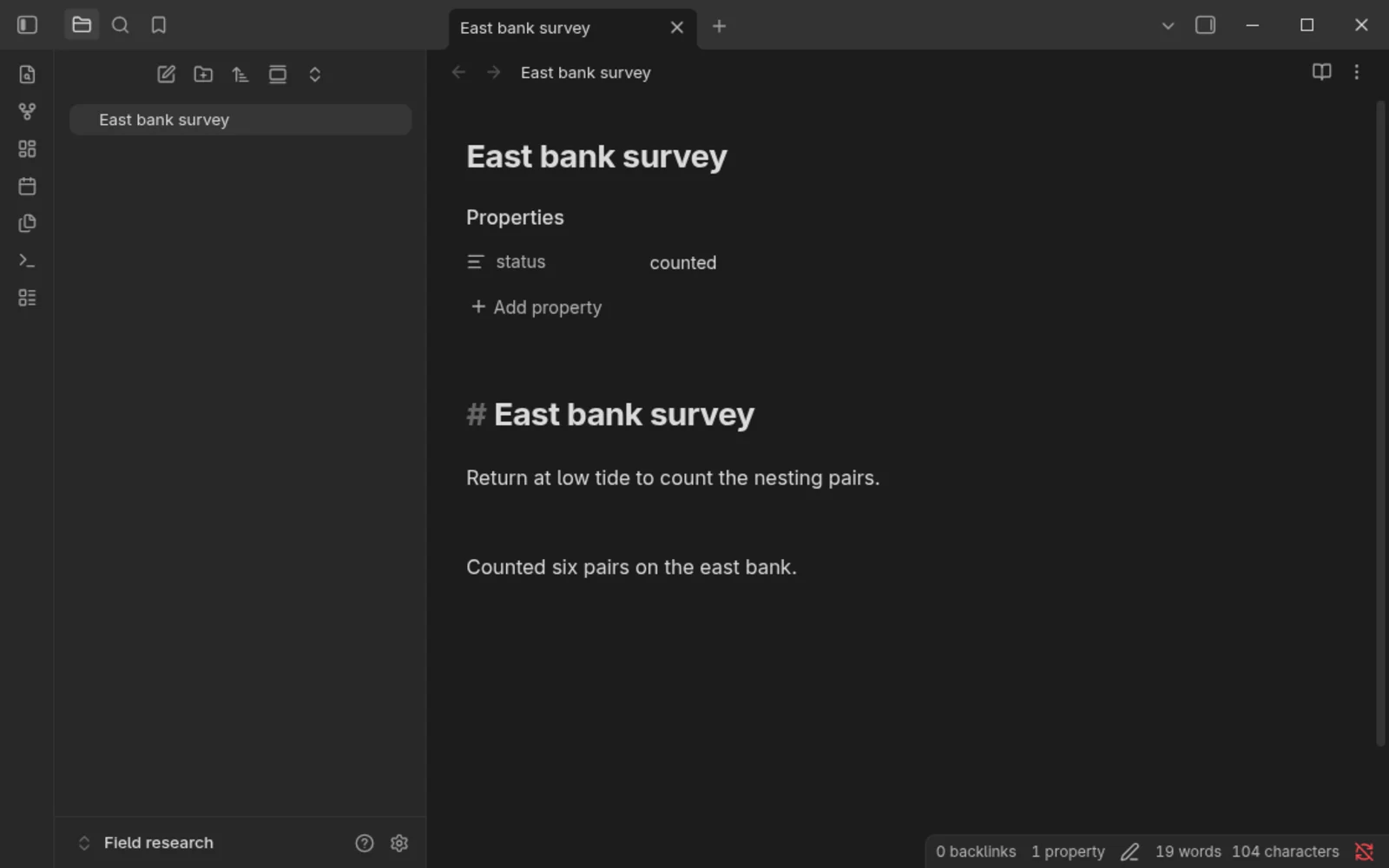
The browser runs mdbase Editor with its own commands and views. Your Obsidian plugins and workspace layout live in Obsidian. If both apps edit the same note, review Editor’s This note changed elsewhere prompt before choosing which version to keep. See editing and conflicts or give Claude read access to the vault.
This page is the file content/guides/obsidian-browser.md, a record in the
site’s documentation collection.
Its frontmatter follows the doc-page type.
---
title: Edit an Obsidian vault in your browser
description: Open your vault folder as an mdbase collection. Use mdbase Editor to edit the Markdown body and YAML properties, then open the same file in Obsidian.
section: guides
---
Use the [Connect desktop app](/downloads/) on the computer that holds your vault, and [mdbase Editor](https://editor.mdbase.dev/) in the browser. You need an mdbase account and the path to your vault. Obsidian describes a vault as [a folder on your computer](https://obsidian.md/help/vault).
## 1. Make the vault available
Use one sync service for a given folder. If you already sync this vault, decide which service will own that job before you turn on mdbase sync. The [mdbase plugin for Obsidian](https://github.com/mdbase-dev/mdbase-obsidian#sync) can sync the vault in place of the desktop app.
In the desktop app, sign in and open **Collections → Add existing**. Select the vault folder. Open its actions menu and choose **Turn on sync**. If your vault already syncs with mdbase, use that collection.
Choose **Cloud copy** (the default) if you need access while your computers are off. mdbase can read this copy. For **Private**, open **Advanced**, select end-to-end encryption and confirm. To use Editor with a Private collection, keep a computer that serves it online.

## 2. Open the collection in Editor
Open [mdbase Editor](https://editor.mdbase.dev/) and choose **Choose a collection** in the collections sidebar. Sign in and select your vault. If another collection is already open, choose **Connect another collection**. Review the name and the requested permissions. Allow reading and editing. To create the example below, also allow creating records.
Check that the collection name in the rail matches the vault. **Saved only in this browser** indicates a local workspace. Connect the vault before you expect changes to appear on your computer.

## 3. Write a note and edit it
Select an existing note, or choose **New note**. For a new note, use **East bank survey** as the title and write the field instruction below. Check the suggested path and press **Ctrl Enter** (**⌘ Enter** on Mac) to create it.

After the survey, open the note again. Add a second paragraph with your count. Editor saves edits to an existing note automatically. The screenshots use a browser-local sample so you can see the edit without granting access to a vault.

## 4. Check the Markdown and properties
Open **Note properties**. On a narrow screen, look under **More note actions**. In the properties panel, open **Property options → Edit as source**. Add the three frontmatter lines at the top of the note, then leave the field to save.


With a connected collection, wait for the desktop app to finish syncing. Open the same note in Obsidian. This is the file to check:
```markdown title="East bank survey.md"
---
status: counted
---
# East bank survey
Return at low tide to count the nesting pairs.
Counted six pairs on the east bank.
```

The browser runs mdbase Editor with its own commands and views. Your Obsidian plugins and workspace layout live in Obsidian. If both apps edit the same note, review Editor’s **This note changed elsewhere** prompt before choosing which version to keep. See [editing and conflicts](/apps/editor/notes/#conflicts) or [give Claude read access to the vault](/guides/claude-obsidian/).