Connect ChatGPT to your Markdown notes
Add mdbase as a custom MCP server in ChatGPT, approve one collection and ask for the paths and contents of matching Markdown notes.You need a ChatGPT workspace that allows custom MCP servers, an mdbase account and a synced collection. An Obsidian vault can be that collection. Choose a folder whose entire contents you’re comfortable making available to ChatGPT.
1. Sync the folder that holds your notes
Use one sync service for a given folder. If you already sync this vault, decide which service will own that job before you turn on mdbase sync. The mdbase plugin for Obsidian can sync the vault in place of the desktop app.
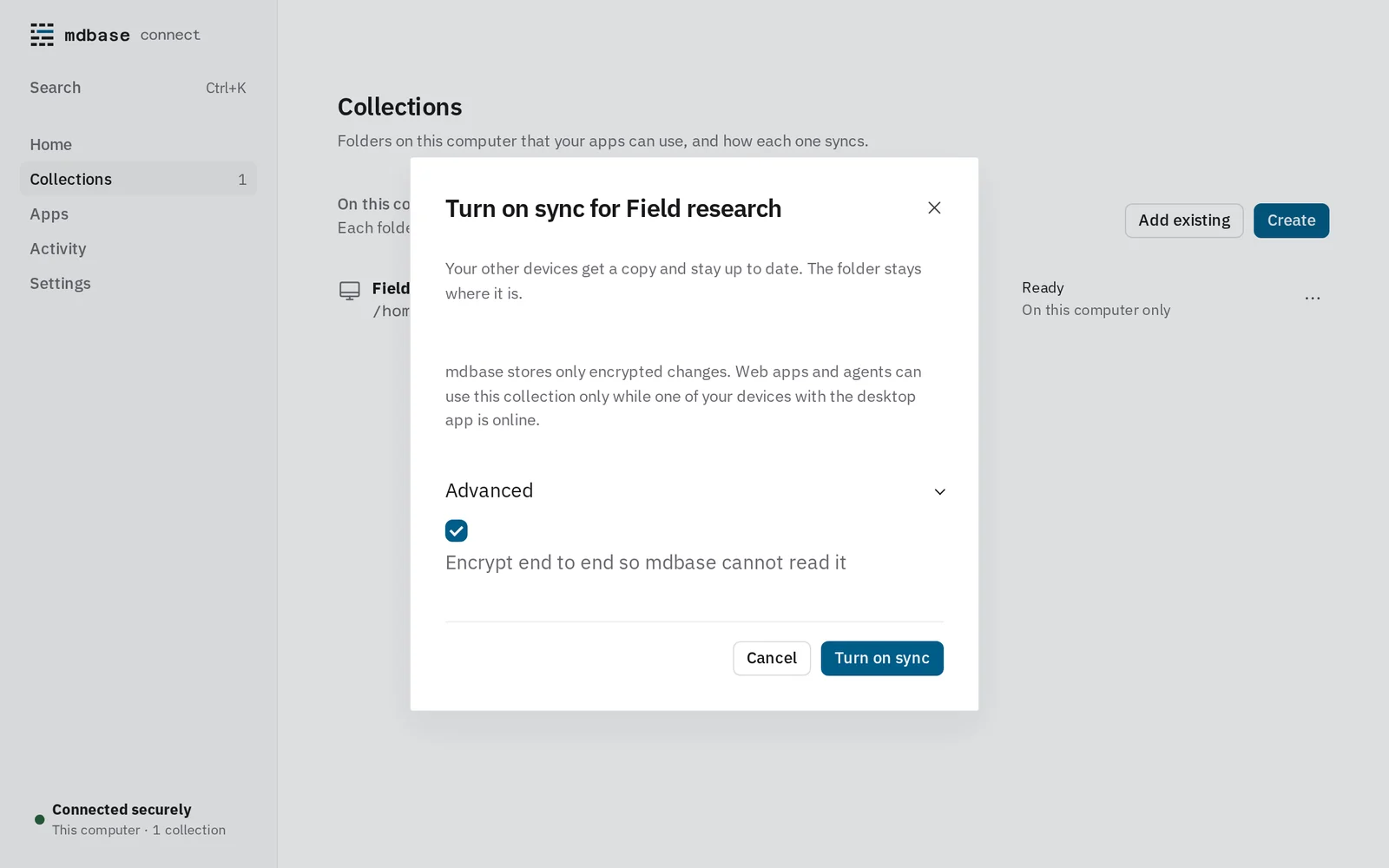
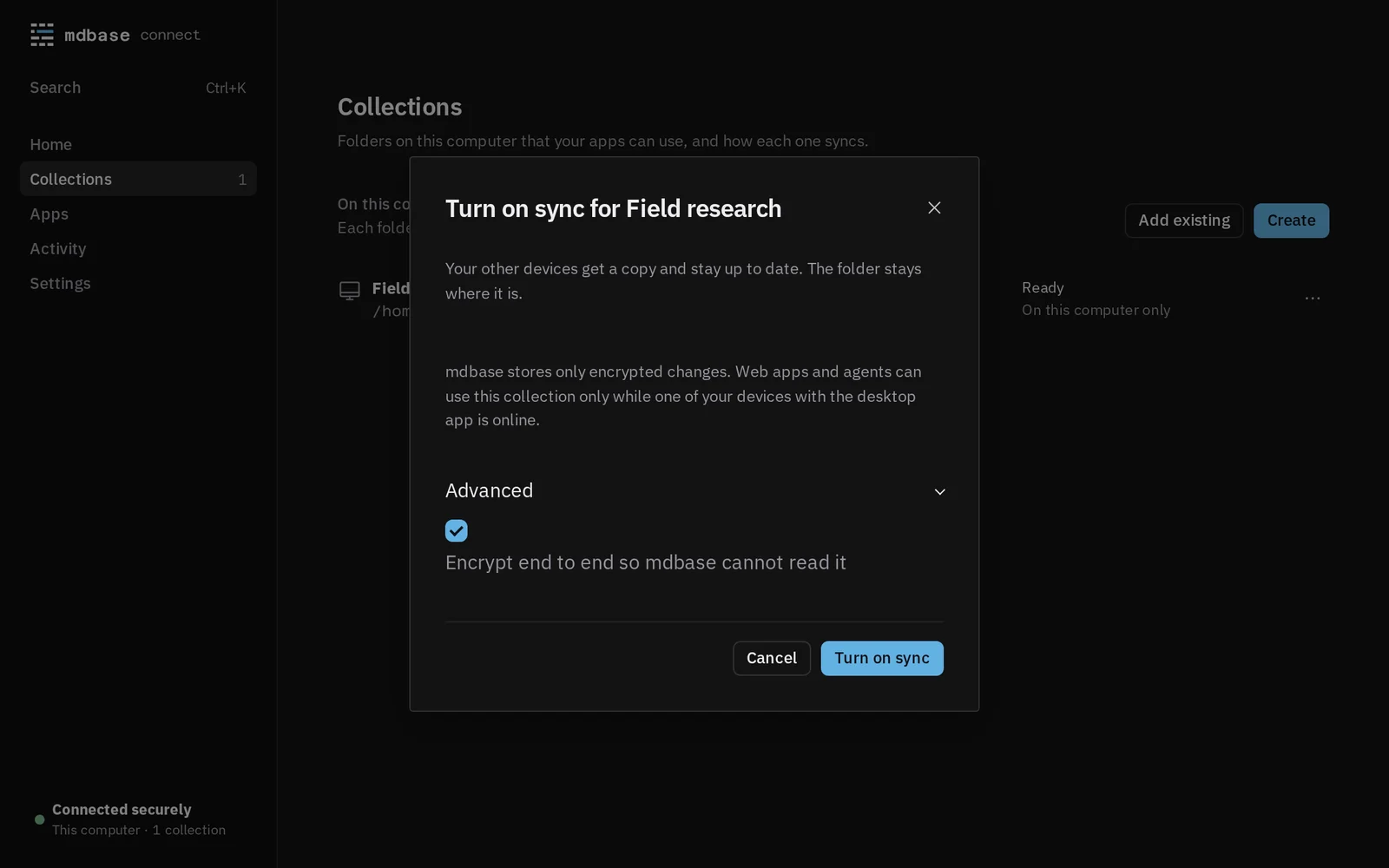
In the mdbase Connect desktop app, open Collections → Add existing and select the folder. In the folder’s actions menu, choose Turn on sync. If the folder already syncs with mdbase, use that collection. Write down its name. You’ll select it again during approval.
Cloud copy makes a readable copy available while your computer is off. For Private, select end-to-end encryption under Advanced. A computer serving the Private collection must be online when ChatGPT requests a note.
2. Add the remote MCP server
In ChatGPT, open Plugins. Choose the plus button and Add custom MCP server. Give the plugin the name mdbase and a description such as “Read my field notes.” Under Connection, select the public endpoint option and enter:
https://mcp.mdbase.dev/mcpChoose OAuth authentication. Review the warning, select I understand and want to continue, then Create as a plugin. Check the discovered tools for list_connections, query_records and read_record. Install the resulting plugin. If the custom-server option is missing, check your workspace’s policy with its owner. OpenAI’s connection instructions
3. Choose the collection and permissions
When ChatGPT asks you to connect, sign in to mdbase. Check the collection name. The approval screen identifies the service as mdbase at https://mcp.mdbase.dev. For searches and quotations, keep read access and clear the optional create, edit, delete and definition permissions. Choose Allow access.
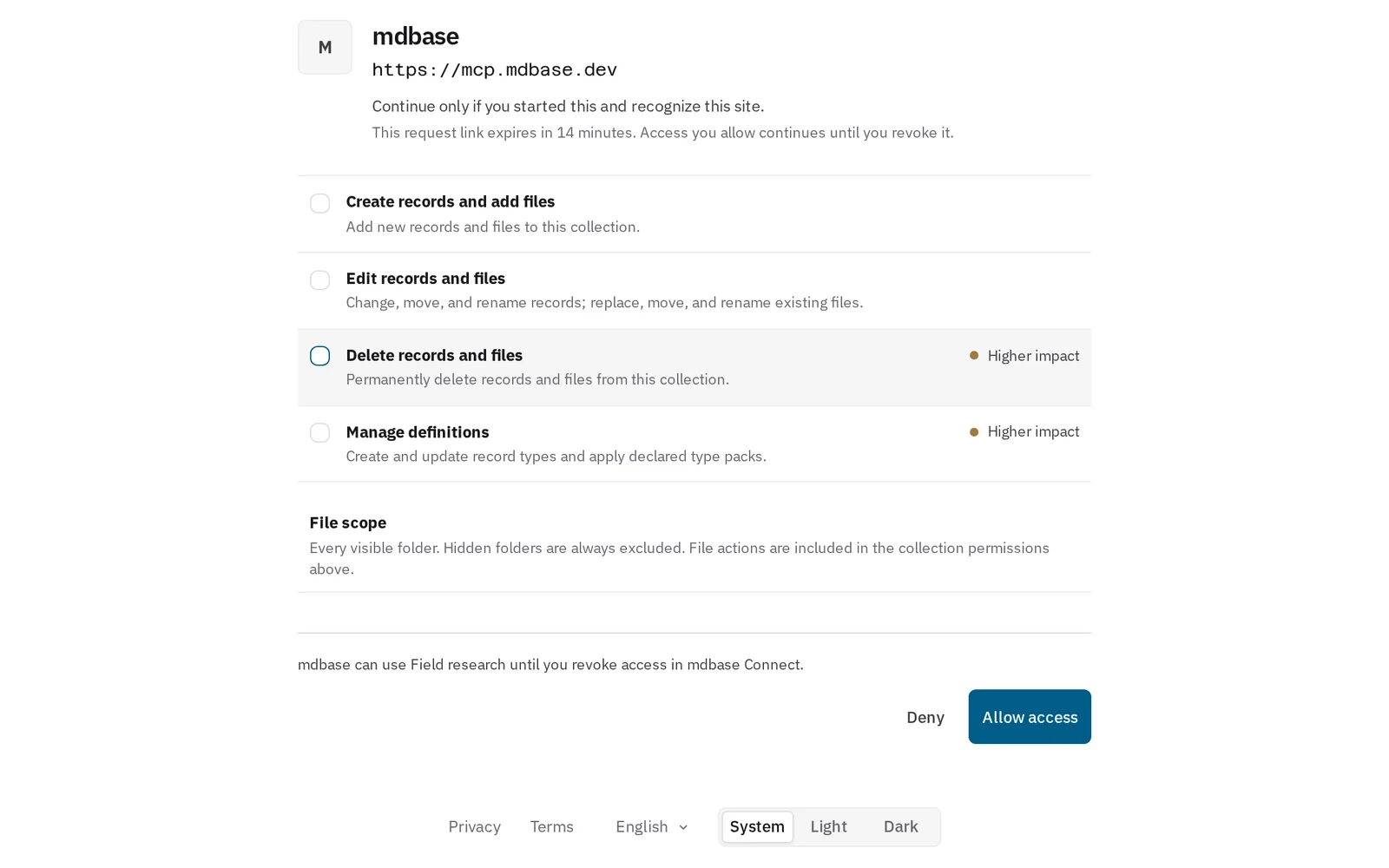
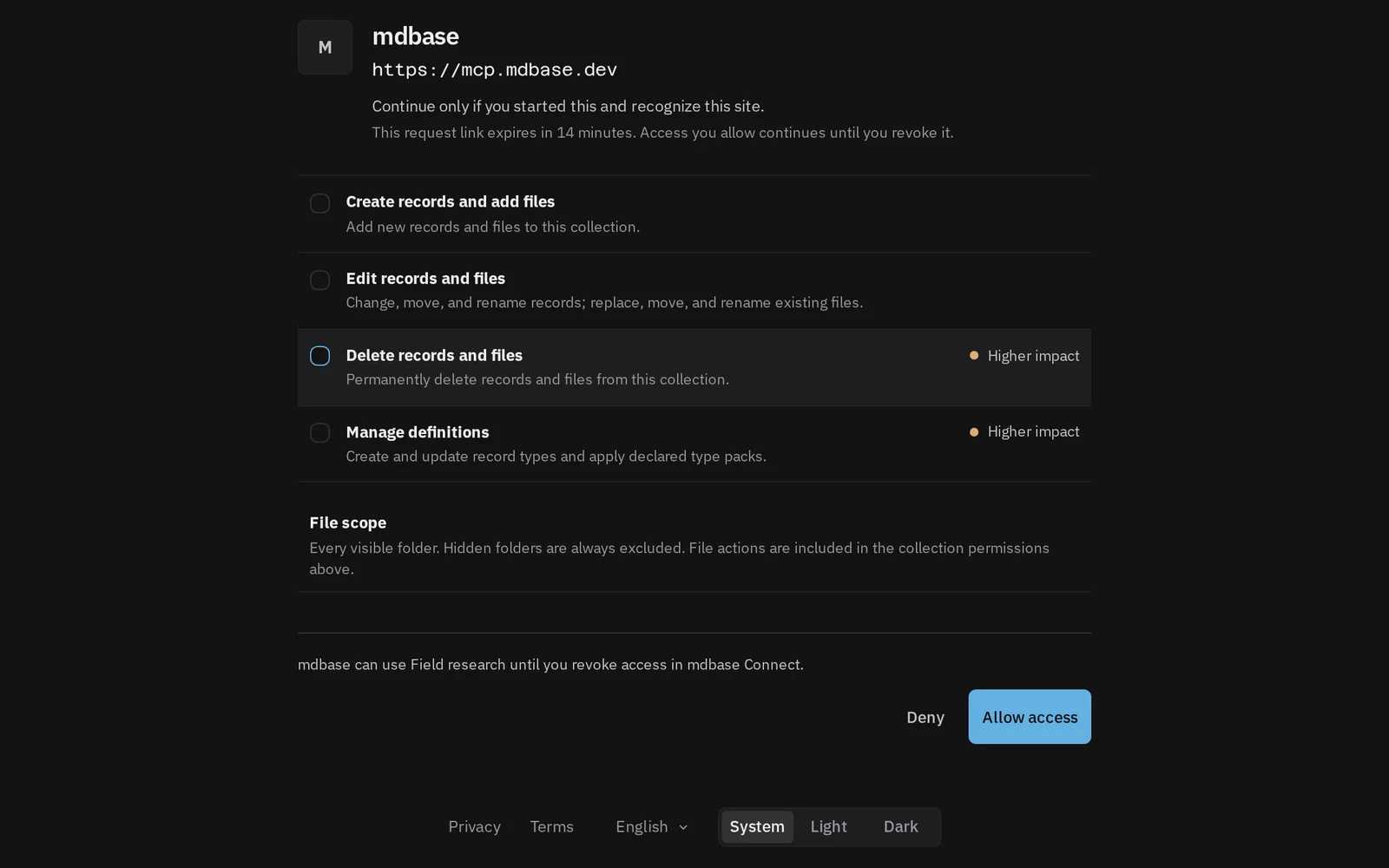
Review what the connector can do in the Field research collection. Silent recording with on-screen captions and sample data.
Text description of the recording
- The review screen identifies the mdbase connector and Field research.
- Create and edit permissions are cleared. Read access stays required.
- The file scope covers the visible folders in this collection.
- Allow access confirms the selection. Connect shows the approved collection.
4. Find a note by its properties
Save the following file in your synced folder. In an Obsidian vault, status is a property of the note. Its value gives ChatGPT a field it can search even when the file name contains no mention of the count.
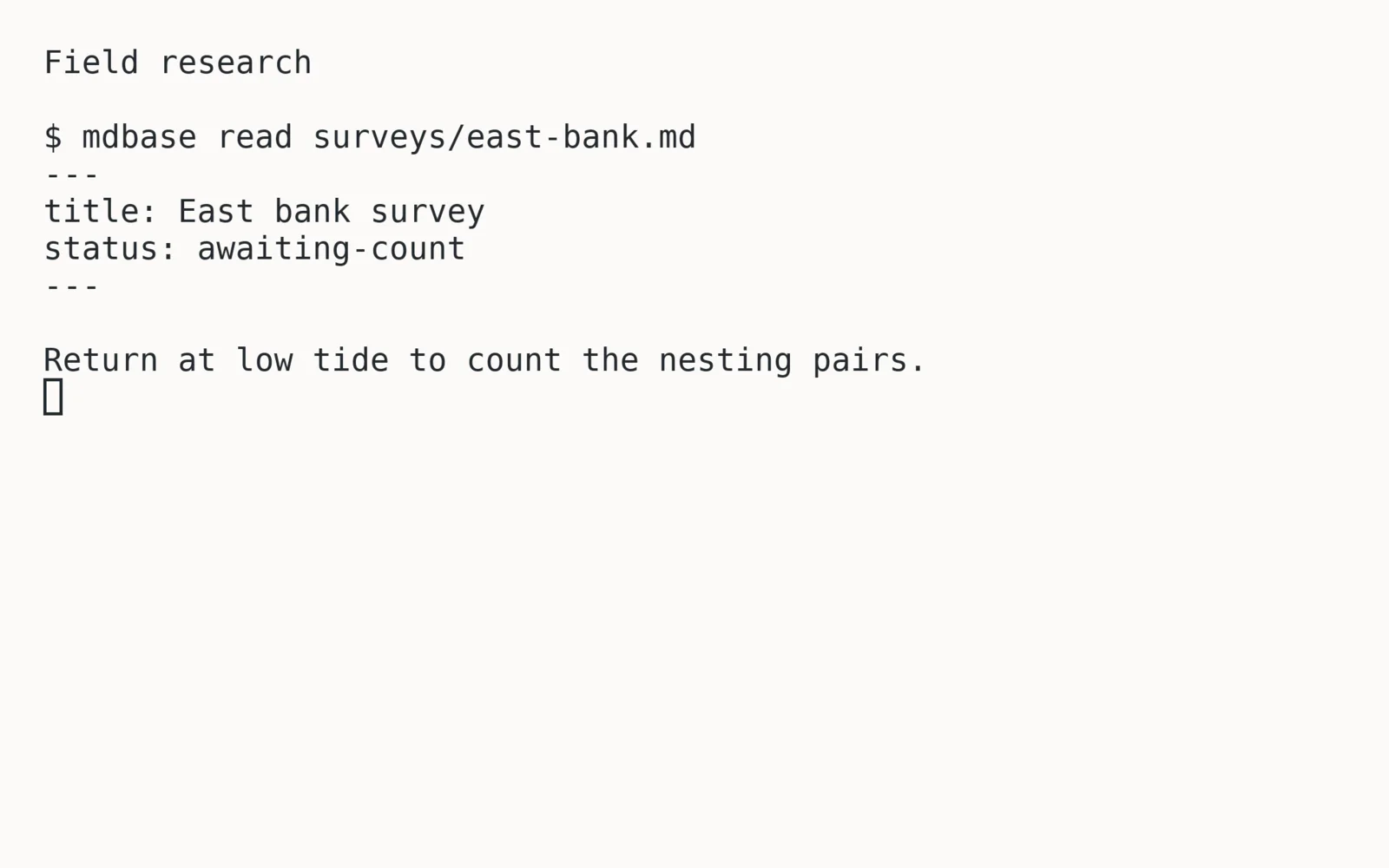
---
title: East bank survey
status: awaiting-count
---

Return at low tide to count the nesting pairs.
In a new ChatGPT conversation, type @ and select mdbase. Replace “Field research” with your collection name:
In Field research, find notes where the status is awaiting-count. Give me their relative paths. Read surveys/east-bank.md and quote its field instruction.
Check for surveys/east-bank.md and the instruction about low tide. You can open the same file on disk and compare the text.
Access after the chat
Closing the chat leaves the collection approval in place. Revoke the application grant in Connect to stop further reads. A Private collection protects the synced copy. The MCP gateway and ChatGPT still receive the content you ask them to read. See MCP data handling or connect Claude to the same vault.
This page is the file content/guides/chatgpt-markdown.md, a record in the
site’s documentation collection.
Its frontmatter follows the doc-page type.
---
title: Connect ChatGPT to your Markdown notes
description: Add mdbase as a custom MCP server in ChatGPT, approve one collection and ask for the paths and contents of matching Markdown notes.
section: guides
---
You need a ChatGPT workspace that allows custom MCP servers, an mdbase account and a synced collection. An Obsidian vault can be that collection. Choose a folder whose entire contents you’re comfortable making available to ChatGPT.
## 1. Sync the folder that holds your notes
Use one sync service for a given folder. If you already sync this vault, decide which service will own that job before you turn on mdbase sync. The [mdbase plugin for Obsidian](https://github.com/mdbase-dev/mdbase-obsidian#sync) can sync the vault in place of the desktop app.
In the [mdbase Connect desktop app](/downloads/), open **Collections → Add existing** and select the folder. In the folder’s actions menu, choose **Turn on sync**. If the folder already syncs with mdbase, use that collection. Write down its name. You’ll select it again during approval.
**Cloud copy** makes a readable copy available while your computer is off. For **Private**, select end-to-end encryption under **Advanced**. A computer serving the Private collection must be online when ChatGPT requests a note.

## 2. Add the remote MCP server
In ChatGPT, open **Plugins**. Choose the plus button and **Add custom MCP server**. Give the plugin the name `mdbase` and a description such as “Read my field notes.” Under **Connection**, select the public endpoint option and enter:
```text title="MCP server URL"
https://mcp.mdbase.dev/mcp
```
Choose OAuth authentication. Review the warning, select **I understand and want to continue**, then **Create as a plugin**. Check the discovered tools for `list_connections`, `query_records` and `read_record`. Install the resulting plugin. If the custom-server option is missing, check your workspace’s policy with its owner. [OpenAI’s connection instructions](https://developers.openai.com/plugins/deploy/connect-chatgpt#add-the-mcp-server)
## 3. Choose the collection and permissions
When ChatGPT asks you to connect, sign in to mdbase. Check the collection name. The approval screen identifies the service as **mdbase** at `https://mcp.mdbase.dev`. For searches and quotations, keep read access and clear the optional create, edit, delete and definition permissions. Choose **Allow access**.


## 4. Find a note by its properties
Save the following file in your synced folder. In an Obsidian vault, `status` is a property of the note. Its value gives ChatGPT a field it can search even when the file name contains no mention of the count.
```markdown title="surveys/east-bank.md"
---
title: East bank survey
status: awaiting-count
---
Return at low tide to count the nesting pairs.
```
In a new ChatGPT conversation, type `@` and select **mdbase**. Replace “Field research” with your collection name:
> In Field research, find notes where the status is awaiting-count. Give me their relative paths. Read surveys/east-bank.md and quote its field instruction.
Check for `surveys/east-bank.md` and the instruction about low tide. You can open the same file on disk and compare the text.

## Access after the chat
Closing the chat leaves the collection approval in place. [Revoke the application grant in Connect](/apps/mcp/collections/#revoke) to stop further reads. A Private collection protects the synced copy. The MCP gateway and ChatGPT still receive the content you ask them to read. See [MCP data handling](/apps/mcp/data-handling/) or [connect Claude to the same vault](/guides/claude-obsidian/).