Connect Claude to your Obsidian vault
Sync your vault folder with mdbase Connect, then give Claude read access through MCP. Try it with one note whose answer you can check.You need an Obsidian vault folder, the mdbase Connect desktop app, an mdbase account and access to connectors in Claude. If only a few notes should be visible to Claude, put them in a separate vault. Approval covers the whole collection.
1. Connect the vault folder
Use one sync service for a given folder. If you already sync this vault, decide which service will own that job before you turn on mdbase sync. The mdbase plugin for Obsidian can sync the vault in place of the desktop app.
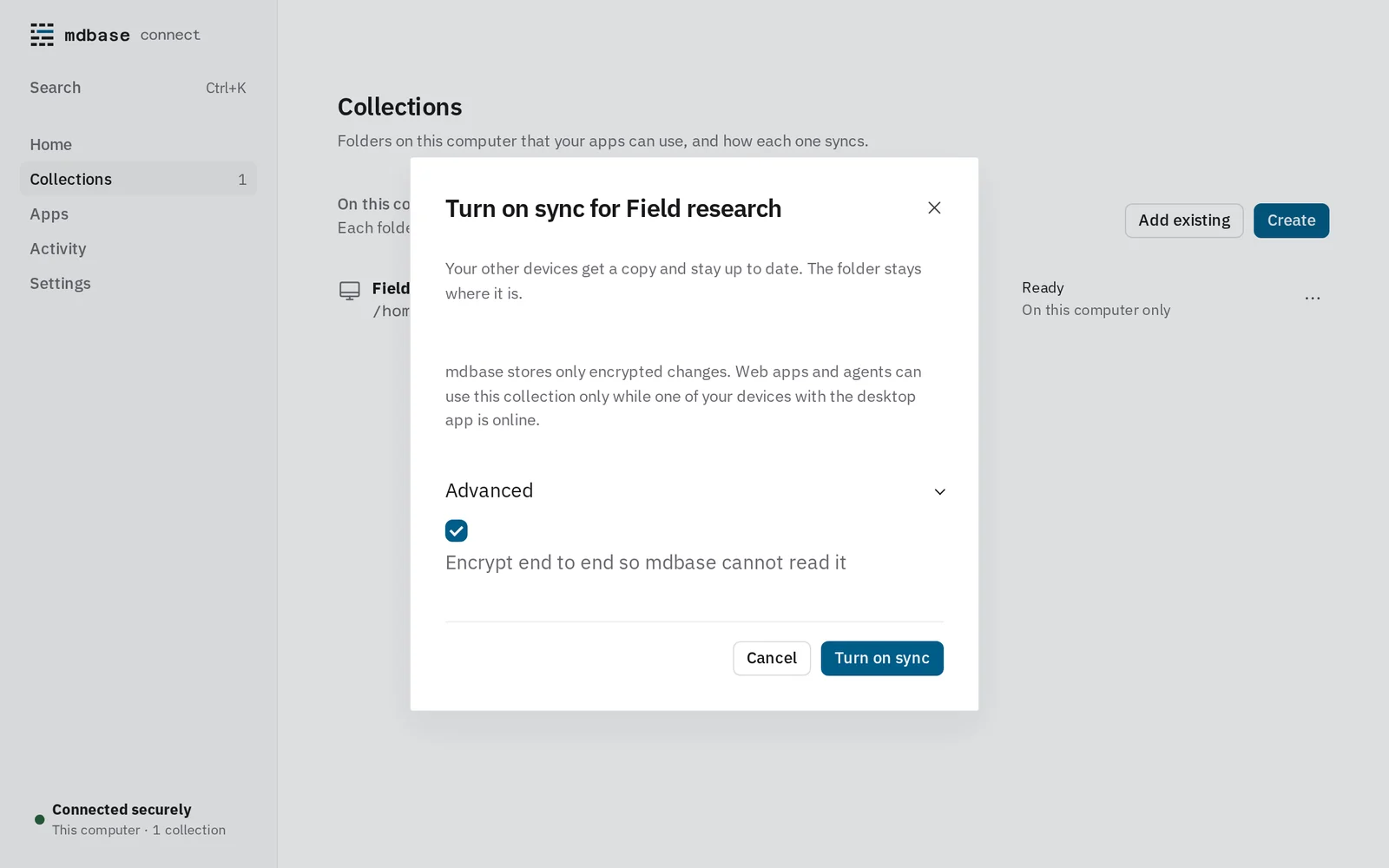
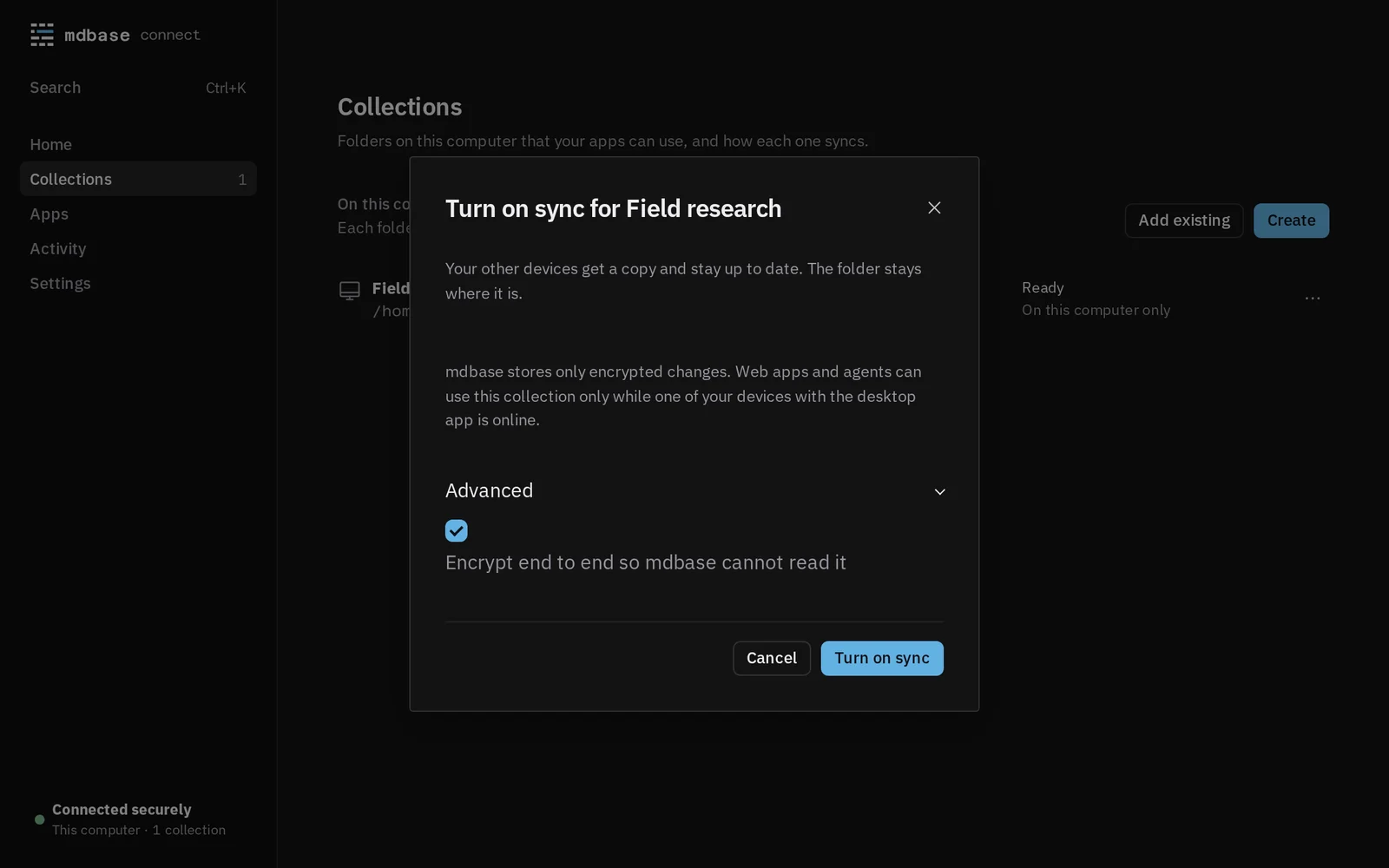
Sign in to the desktop app. Under Collections, choose Add existing and select the folder that contains your notes. Open the actions menu beside that folder and choose Turn on sync. If the vault already syncs with mdbase, use its existing collection.
The default, Cloud copy, keeps a copy readable by mdbase. Claude can use it while your computer is off. For Private, open Advanced and select Encrypt end to end so mdbase cannot read it. Keep a computer with Connect and that collection online when you use Claude. Confirm with Turn on sync.
2. Add mdbase in Claude
In Claude on the web, open Customize → Connectors. On a personal account, choose + Add → Add custom connector, enter mdbase as the name and paste this server URL.
https://mcp.mdbase.dev/mcpChoose Continue. Review the detected authentication settings and continue. Choose Sign in now and Register automatically for the OAuth client. Choose Add. If Claude shows Connect beside mdbase, select it to start sign-in. A managed workspace may need an owner to add the connector first. Claude’s connector instructions
3. Approve read access
In the mdbase sign-in window, choose the collection that matches your vault folder. On the review screen, check the app address and collection name. Keep the required read permission. Clear the optional permissions for creating, editing and deleting records and files, and for managing definitions. Choose Allow access.
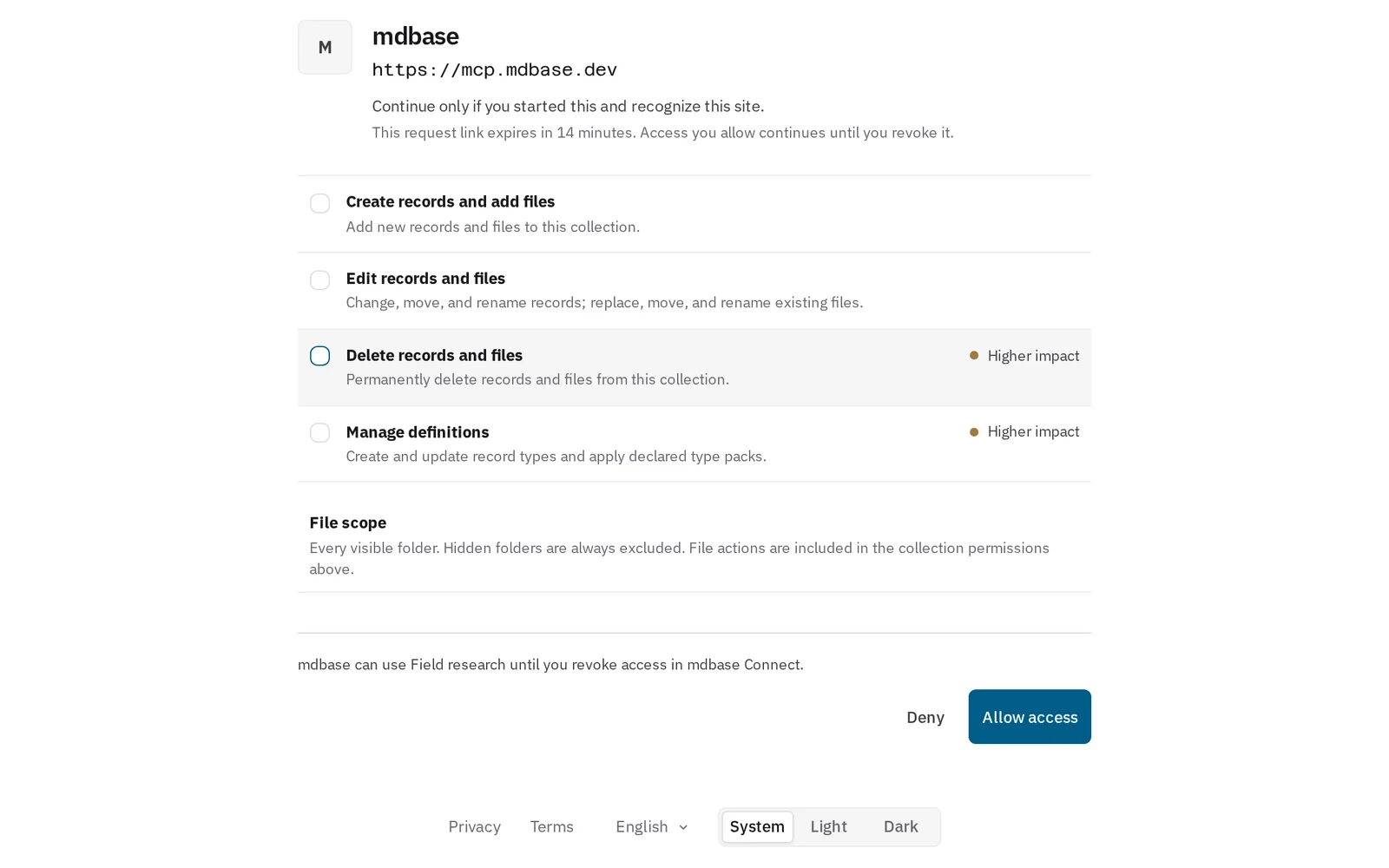
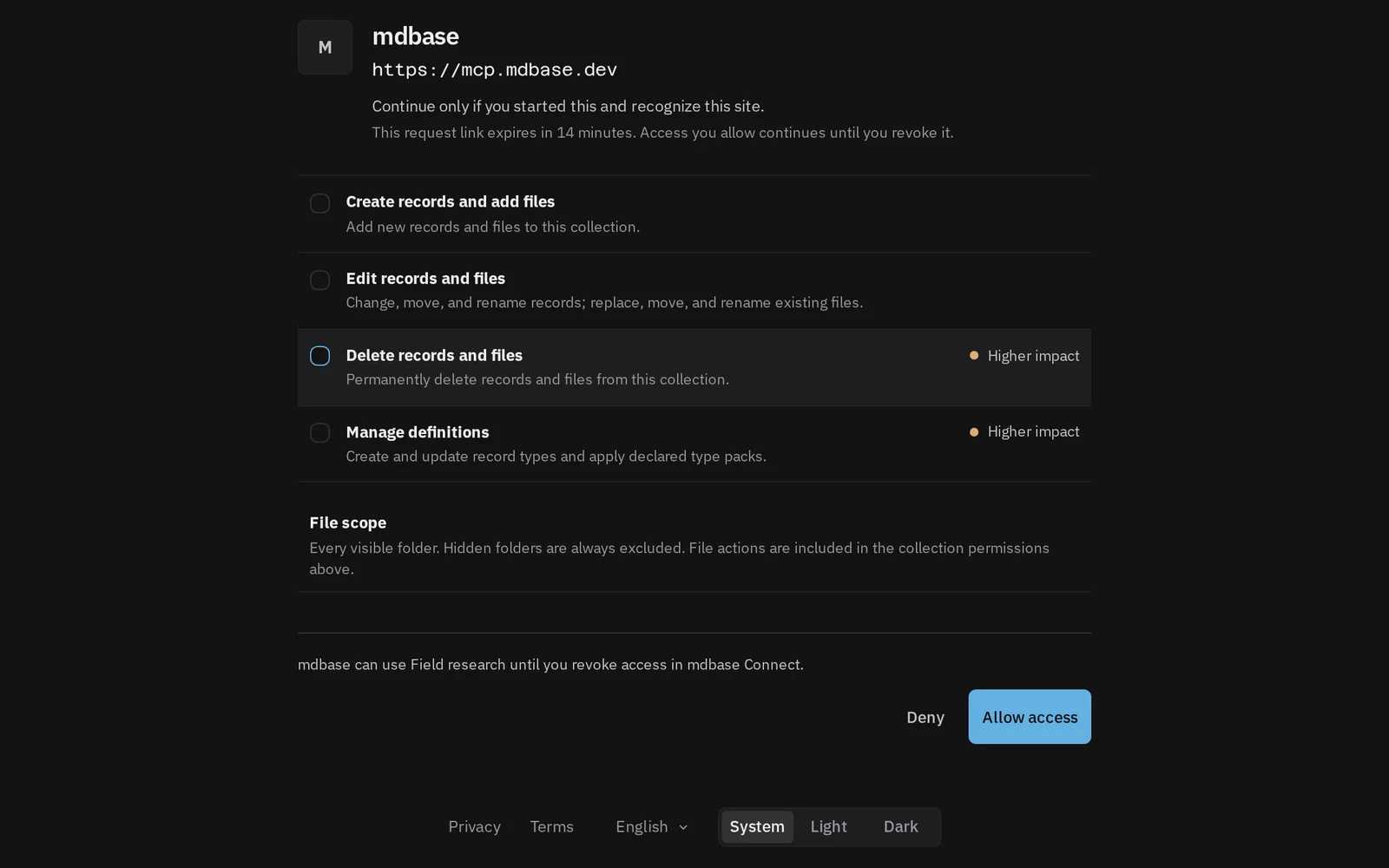
Review what the connector can do in the Field research collection. Silent recording with on-screen captions and sample data.
Text description of the recording
- The review screen identifies the mdbase connector and Field research.
- Create and edit permissions are cleared. Read access stays required.
- The file scope covers the visible folders in this collection.
- Allow access confirms the selection. Connect shows the approved collection.
4. Read a note you can check
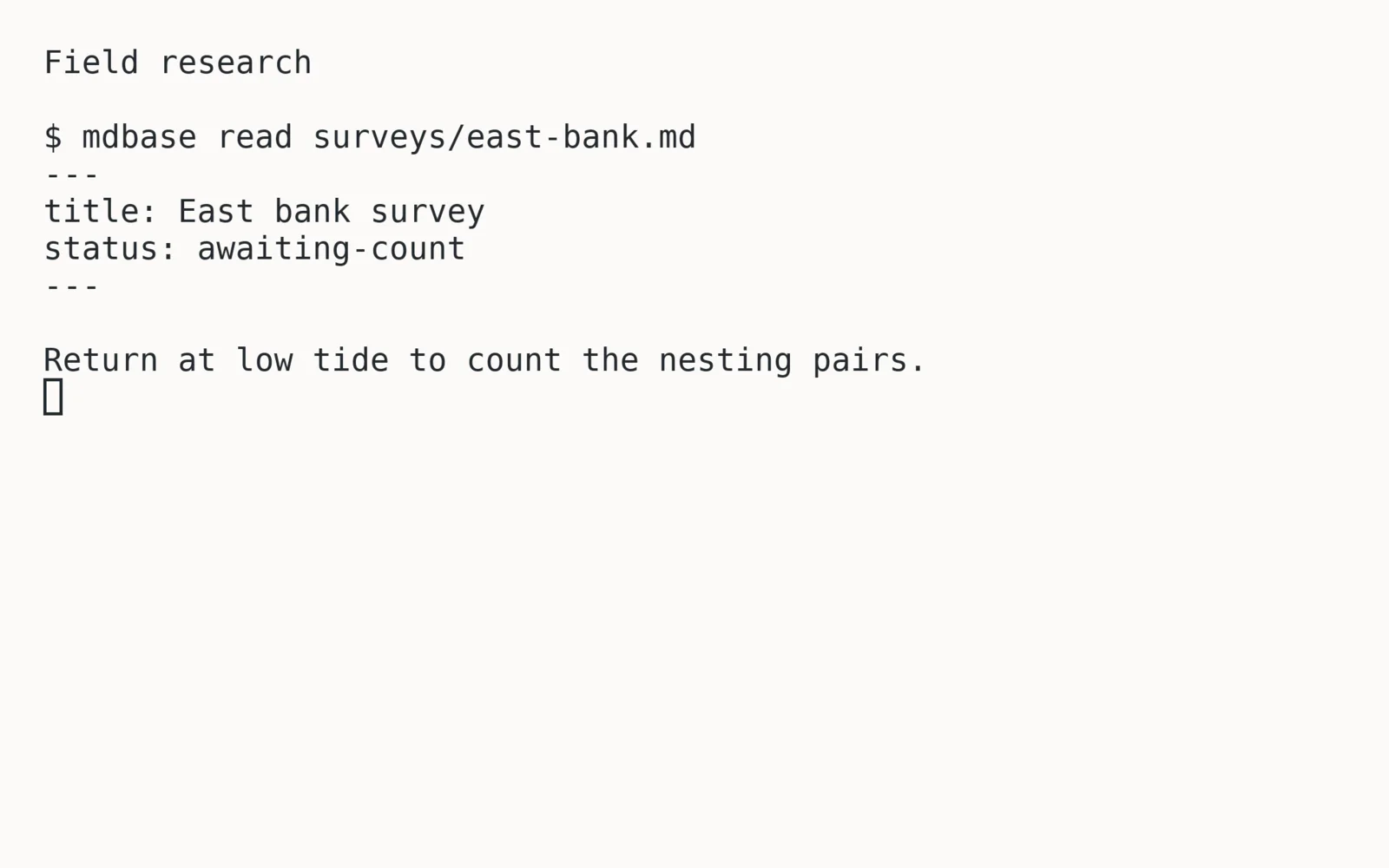
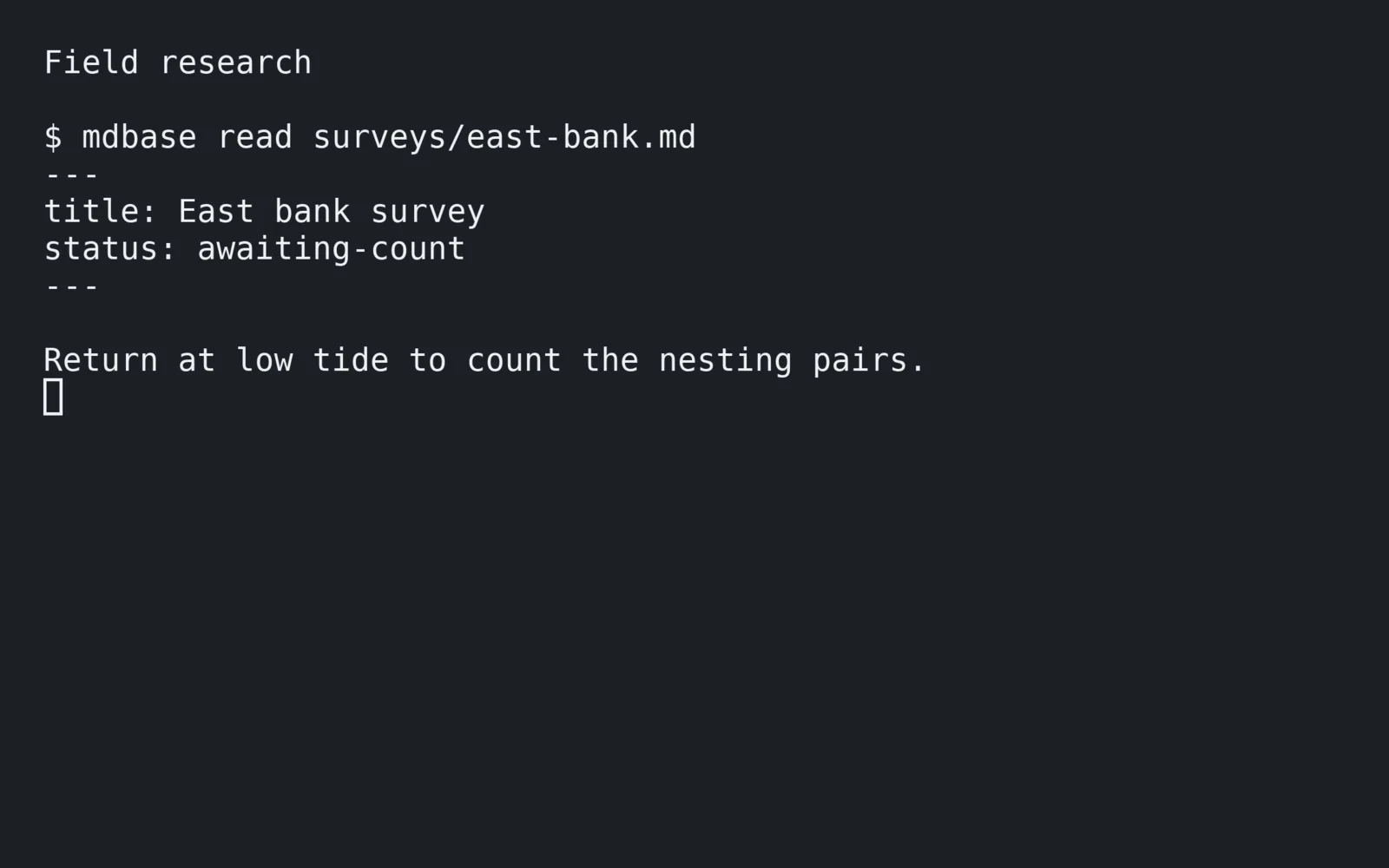
Save this file as surveys/east-bank.md in your vault. The lines between the two sets of dashes are its properties. The sentence below them is its body.
---
title: East bank survey
status: awaiting-count
---

Return at low tide to count the nesting pairs.
Once the folder has synced, open a chat. In + → Connectors, enable mdbase. Ask:
List my connected collections. In Field research, read surveys/east-bank.md. Give me the status and quote the field instruction.
Substitute your collection name. Claude can use list_connections to find it and read_record to read the file. Check for awaiting-count and the sentence about low tide. A read leaves the file as you wrote it.
What Claude can see
Private encrypts the synced collection. When you ask Claude to read a note, the gateway processes the result and sends it to Claude. The read permission also covers other records in that collection. To stop access, revoke the grant in Connect’s Applications screen.
See MCP data handling for what leaves your device, or connection errors if the collection is offline.
This page is the file content/guides/claude-obsidian.md, a record in the
site’s documentation collection.
Its frontmatter follows the doc-page type.
---
title: Connect Claude to your Obsidian vault
description: Sync your vault folder with mdbase Connect, then give Claude read access through MCP. Try it with one note whose answer you can check.
section: guides
---
You need an [Obsidian vault folder](https://obsidian.md/help/vault), the [mdbase Connect desktop app](/downloads/), an mdbase account and access to connectors in Claude. If only a few notes should be visible to Claude, put them in a separate vault. Approval covers the whole collection.
## 1. Connect the vault folder
Use one sync service for a given folder. If you already sync this vault, decide which service will own that job before you turn on mdbase sync. The [mdbase plugin for Obsidian](https://github.com/mdbase-dev/mdbase-obsidian#sync) can sync the vault in place of the desktop app.
Sign in to the desktop app. Under **Collections**, choose **Add existing** and select the folder that contains your notes. Open the actions menu beside that folder and choose **Turn on sync**. If the vault already syncs with mdbase, use its existing collection.
The default, **Cloud copy**, keeps a copy readable by mdbase. Claude can use it while your computer is off. For **Private**, open **Advanced** and select **Encrypt end to end so mdbase cannot read it**. Keep a computer with Connect and that collection online when you use Claude. Confirm with **Turn on sync**.

## 2. Add mdbase in Claude
In Claude on the web, open **Customize → Connectors**. On a personal account, choose **+ Add → Add custom connector**, enter `mdbase` as the name and paste this server URL.
```text title="Remote MCP server URL"
https://mcp.mdbase.dev/mcp
```
Choose **Continue**. Review the detected authentication settings and continue. Choose **Sign in now** and **Register automatically** for the OAuth client. Choose **Add**. If Claude shows **Connect** beside mdbase, select it to start sign-in. A managed workspace may need an owner to add the connector first. [Claude’s connector instructions](https://support.claude.com/en/articles/11175166-get-started-with-custom-connectors-using-remote-mcp)
## 3. Approve read access
In the mdbase sign-in window, choose the collection that matches your vault folder. On the review screen, check the app address and collection name. Keep the required read permission. Clear the optional permissions for creating, editing and deleting records and files, and for managing definitions. Choose **Allow access**.


## 4. Read a note you can check
Save this file as `surveys/east-bank.md` in your vault. The lines between the two sets of dashes are its properties. The sentence below them is its body.
```markdown title="surveys/east-bank.md"
---
title: East bank survey
status: awaiting-count
---
Return at low tide to count the nesting pairs.
```
Once the folder has synced, open a chat. In **+ → Connectors**, enable mdbase. Ask:
> List my connected collections. In Field research, read surveys/east-bank.md. Give me the status and quote the field instruction.
Substitute your collection name. Claude can use `list_connections` to find it and `read_record` to read the file. Check for **awaiting-count** and the sentence about low tide. A read leaves the file as you wrote it.

## What Claude can see
<svg class="guide-route" viewBox="0 0 540 60" role="img" aria-label="A read request goes from Claude through mdbase MCP to the vault collection.">
<rect x="1" y="8" width="118" height="44" rx="6"/><text x="60" y="36">Claude</text>
<path class="request" d="M119 30h58 M331 30h56"/><path d="m169 25 8 5-8 5m210-10 8 5-8 5"/>
<rect x="179" y="8" width="151" height="44" rx="6"/><text x="254" y="36">mdbase MCP</text>
<rect x="390" y="8" width="149" height="44" rx="6"/><text x="464" y="36">Vault collection</text>
</svg>
Private encrypts the synced collection. When you ask Claude to read a note, the gateway processes the result and sends it to Claude. The read permission also covers other records in that collection. To stop access, revoke the grant in [Connect’s Applications screen](/apps/mcp/collections/#revoke).
See [MCP data handling](/apps/mcp/data-handling/) for what leaves your device, or [connection errors](/apps/mcp/troubleshooting/) if the collection is offline.